Using Linux as the operating system on your desktop/laptop
1. Context
People are hoping that 2025 will be the year of linux for the desktop. A large part of the reason behind this appears to be the dissatisfaction with Windows 11, the TPM 2.x requirements resulting in older machines being labeled as ‘not Windows-11 ready’, and the apparently forced purchase of a new machine needed just to ensure support for their existing operating system (!!).
Now, while I cannot predict whether 2025 will be the year of Linux on the desktop, I do sincerely hope that it comes true. I’ve been a Linux user for a long time now (almost 10+ years) - not just on cloud VMs, but as the main operating system on my laptop. I moved out of Windows 10 years back since Windows Update kept re-installing Candy Crush on my machine - after I explicity uninstalled the game, twice. (True story).
I’ve used Linux on and off since 1998 - Redhat 3 - those were days when you would purchase tech magazines for the free CDs they gave away. These CDs had various Linux distros - they saved you the 600 MB download you would otherwise need to do, over a modem. At that time, the situation was bad enough that to get a graphical interface, I needed to compile the video driver from source! Linux has come a long way since then: today it works way better than Windows, especially on older/limited hardware. The plethora of distros/desktops available also ensures that there’s a version that works - for every context.
Why Linux?
One simple reason: Containers and cloud-native development tasks (Docker, Kubernetes, etc) are simpler, and natively supported with no/minimal limitations on Linux when compared to Windows or a Mac.
The target desktop
This post runs through the list of instructions/commands I’ve collected over time to install/set up linux on my own laptop. These instructions should get you an Endeavour OS (Mercury) based desktop with Gnome 47 and the following applications/components:
- EndeavourOS (Arch Linux) + Gnome 47 as the operating system, desktop
- Disk partitions: Two - one for system (the OS), and one for data (other than the
homefolder) - Applications (installed): Libreoffice, Tilix, Vivaldi, Veracrypt, VLC, Zen browser
- Applications (AppImage): GIMP, Inkscape, Draw.io (diagrams), Logseq (Notes), KeepassXC, Notable
- Developer Tools: Docker, Distrobox, VSCodium
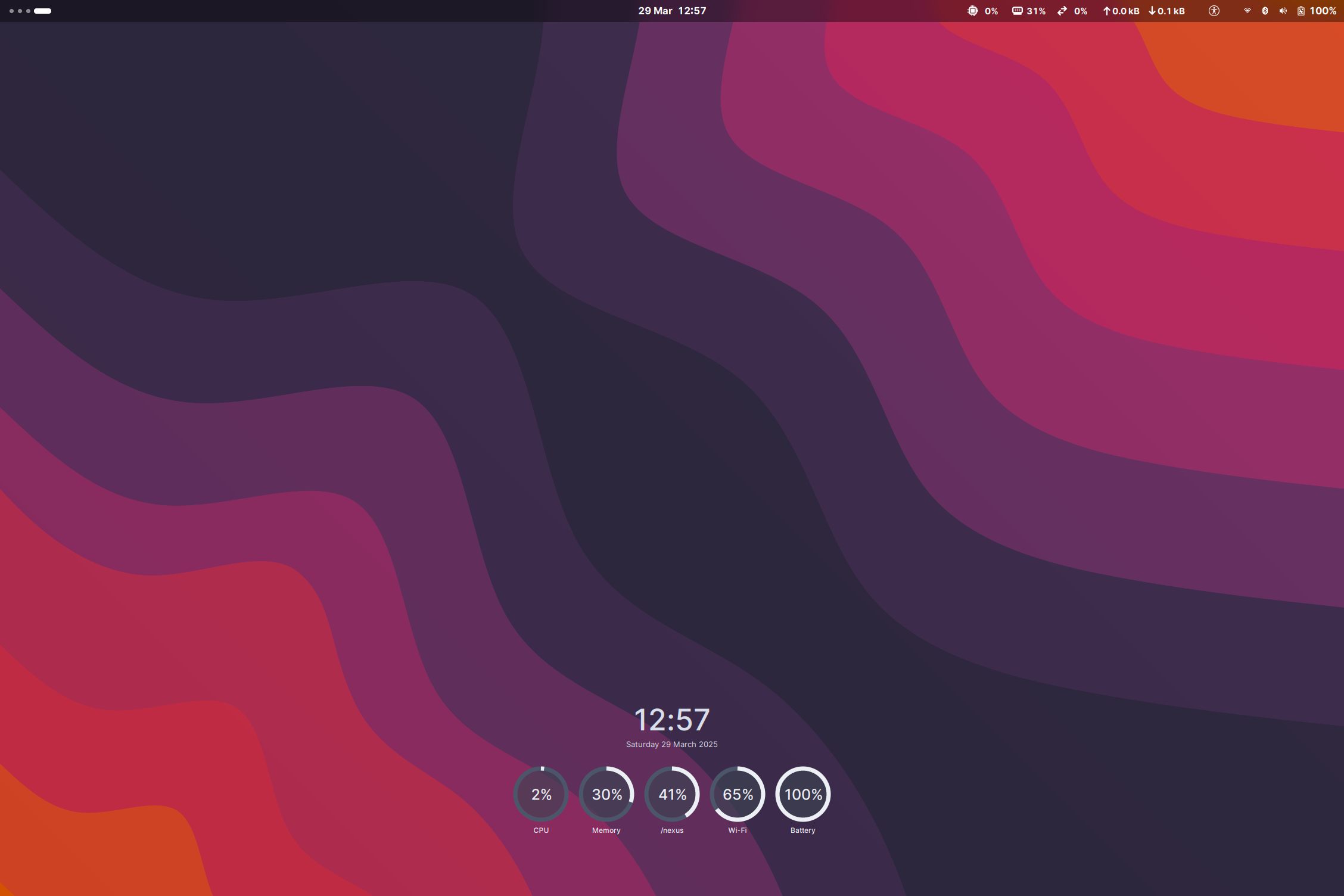
- System Monitor: Conky (custom dials as in the screenshot below)
At the end of the install, you should have a desktop that looks like this:
Disclaimers
- This article is meant to be used as a guide. You are ultimately responsible for what happens on your machine - please read the warrantly/obligations section in the site’s ‘Terms of use’ before proceeding.
- Installing a new operating system over an existing Windows machine (retaining either the restore partition or the data) requires a few steps that are NOT included in this article. Please note that doing a fresh install of Linux over existing Windows will overwrite all data on the drive. This article is meant to be used to install Linux only, steps for backing up data, etc. from the Windows installation are NOT included in this post. Please backup all files that you need to an external drive before proceeding with the steps below. You’ve been warned.
- These instructions are for PC/Windows based machines only, they are NOT for Mac laptops/desktops or Mac minis. While the core steps are similar, installing Linux on Mac laptops requires a few different set of tasks - I have NOT tried/detailed these, I don’t intend to do so either.
- There are many other instructional articles on installing Linux - please feel free to refer to these as needed, this post only gets you a base version that I prefer.
- The first section of this article is generic - sections 2 and 3 are specific to one selected distro/desktop.
- Based on my last estimate, if I’m using an offline install, the time taken to restore/re-install Linux (or switch to a new distro) is about 20 minutes. This is with preferences, browser settings, etc being restored to as before. An online installation takes longer (obviously) - the length of time for an online install depends on the Wifi connection, mirrors used, selected desktop+applications, etc.
- The first section is for beginners, if you are already familiar with Linux and are looking for the customisation/installation steps, head down straight to sections 2 or 3.
Choosing a distro
Well, there are a lot of Linux distros out there. This visual should give you a clue:
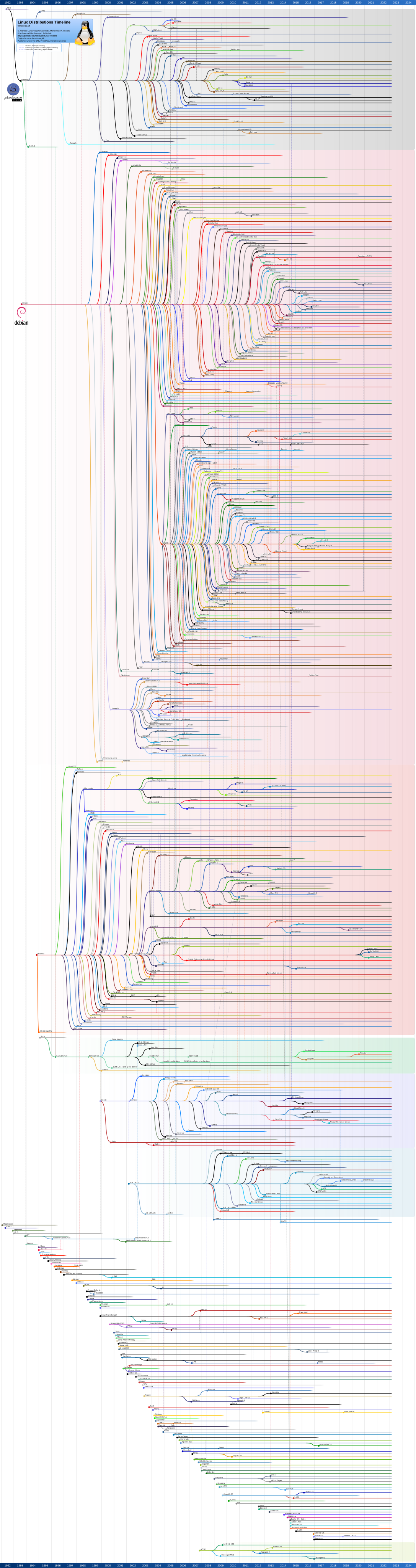
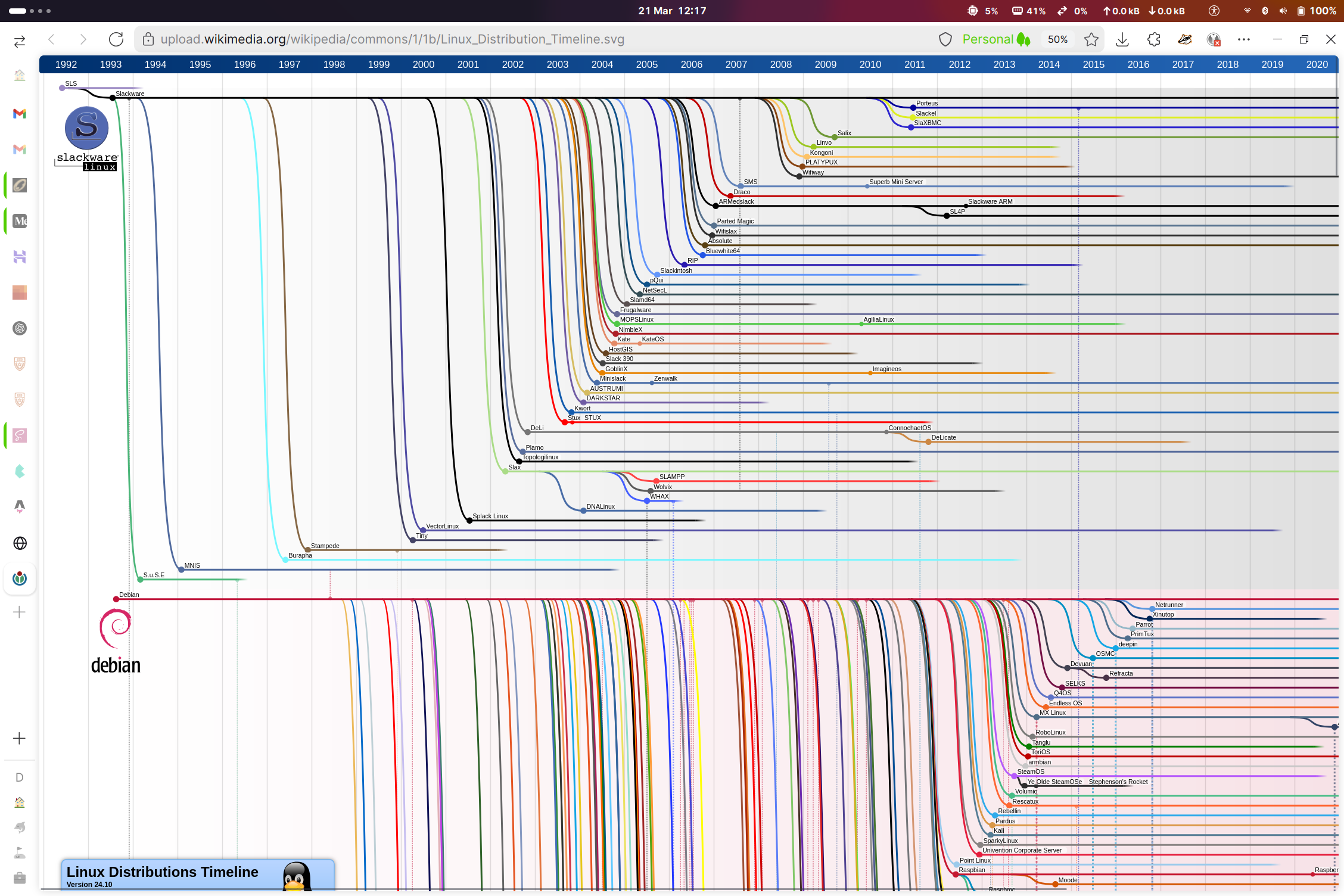
While the image and the number of distributions available can appear overwhelming, they all come down to two things:
- The base distribution (Debian, Arch, etc.), and
- The customizations, desktop choice etc. as a layer over the base.
The 5 main, common base distributions are:
- Debian (what Ubuntu and Linux Mint are based on)
- Arch Linux (what Manjaro, EndeavourOS, CachyOS, etc are based on)
- Redhat, Fedora family
- SuSE, Open SuSE family
- Slackware
Selecting a distro is essentially a choice of the following:
- Which family (base distribution) to have the desktop to be based on
- Whether you’d prefer a stable build (typically Debian) or a rolling release (Arch)
- Which desktop (graphical interface) to use (GNOME, Cinnamon, KDE, XFCE, etc. (to name a few))
I’ll probably write a detailed comparison of distros and the choices above later, but for this article, we’re going to be setting up EndeavourOS - an Arch based distro (rolling release), with GNOME as the desktop.
2. Installing Linux
Before starting the installation, the first step would be to test the selected distribution.
Test the distro
Most distros today offer a Live bootable image. Varying in size from 1-3 GB, these bootable images can be written to any USB drive, and booted from the drive, without installing/making changes to the machine. This offers an excellent way to test out the distro before deciding whether to go ahead with the installation.
The EndeavourOS wiki already provides detailed step-by-step instructions to create a bootable USB drive - the article to follow is at this link:
https://discovery.endeavouros.com/installation/create-install-media-usb-key/2021/03/
If you are on Windows currently, scroll down to the last section and follow the steps listed to created the bootable drive.
Before installing, please ensure that you boot from the drive you created in the step above and verify that the main hardware devices are detected correctly: Wifi, touchpad, display resolution, graphics card, sound, etc. To boot from the USB drive, you will need to plugin the USB stick to the laptop, and press the ‘Select boot device’ key when the laptop is starting. This key varies between laptop models - its typically Escape, F2, Shift-F2 or F12.
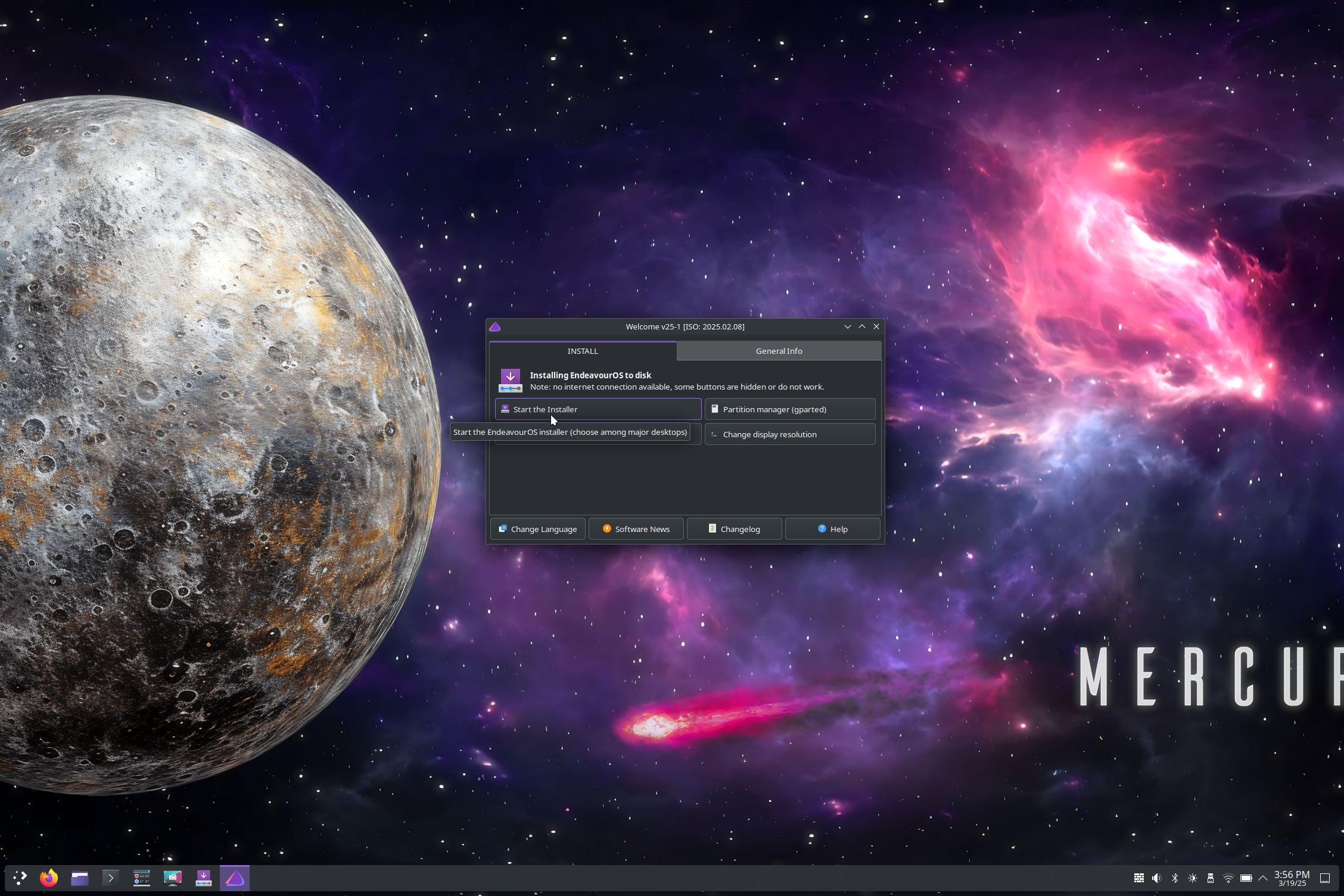
Once you’ve verified that Linux works fine on your machine, the installation process itself is fairly straightforward. When you’ve booted into the live USB you should be presented with the base screen as shown below:
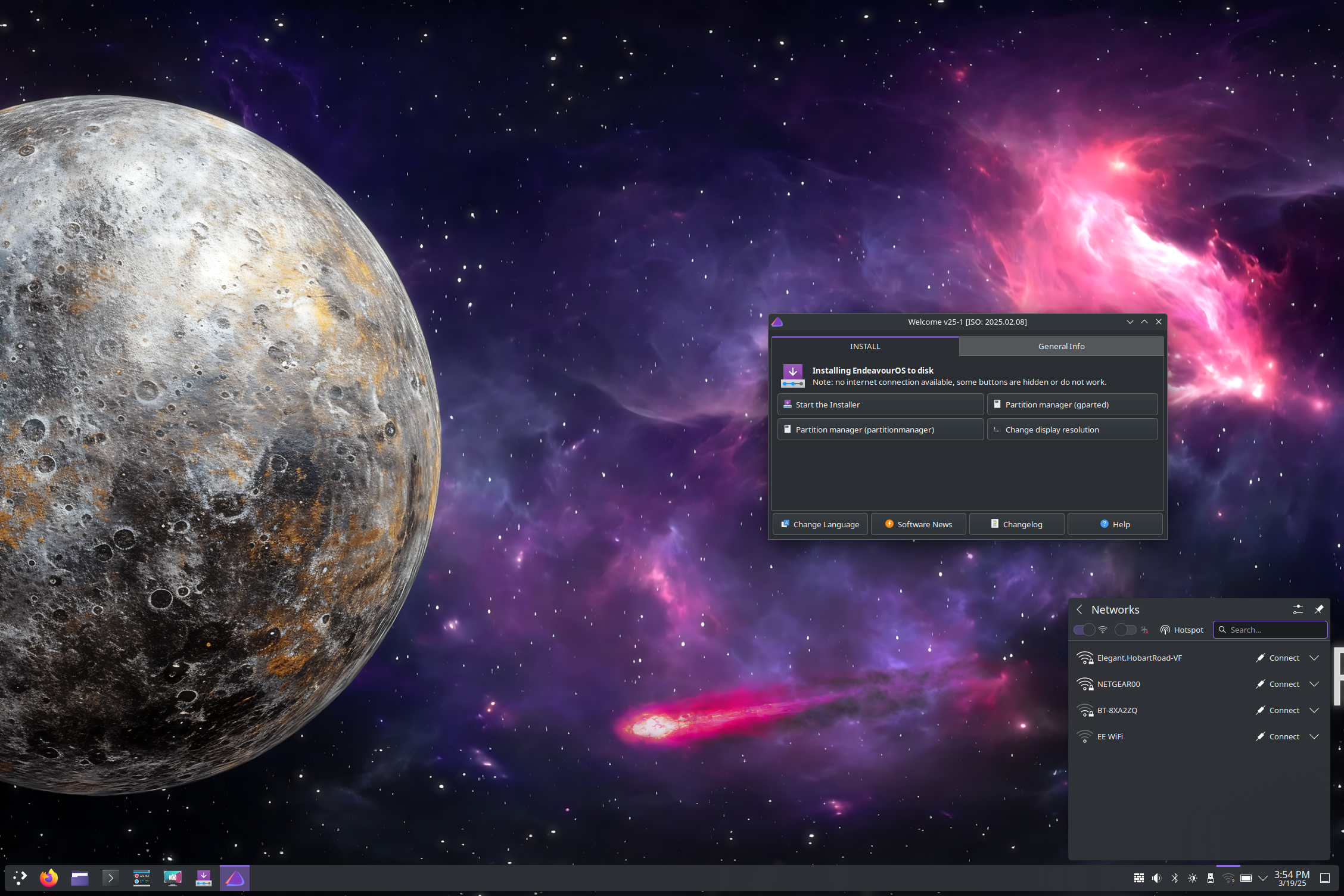
The desktop that is the default for Endeavour OS is KDE - a brilliant desktop that supports an incredible degree of customisation. The most important step to do here before starting the installer is to ensure that the Wifi connection works - this is necessary since we’re going to be carrying out an online installation. The installation itself is straightforward, and you should not need to resort to Terminal commands, the graphical installer of Endeavour OS does all the key tasks - the main item to focus on during the installation is the disk partition setup.
Start the installation
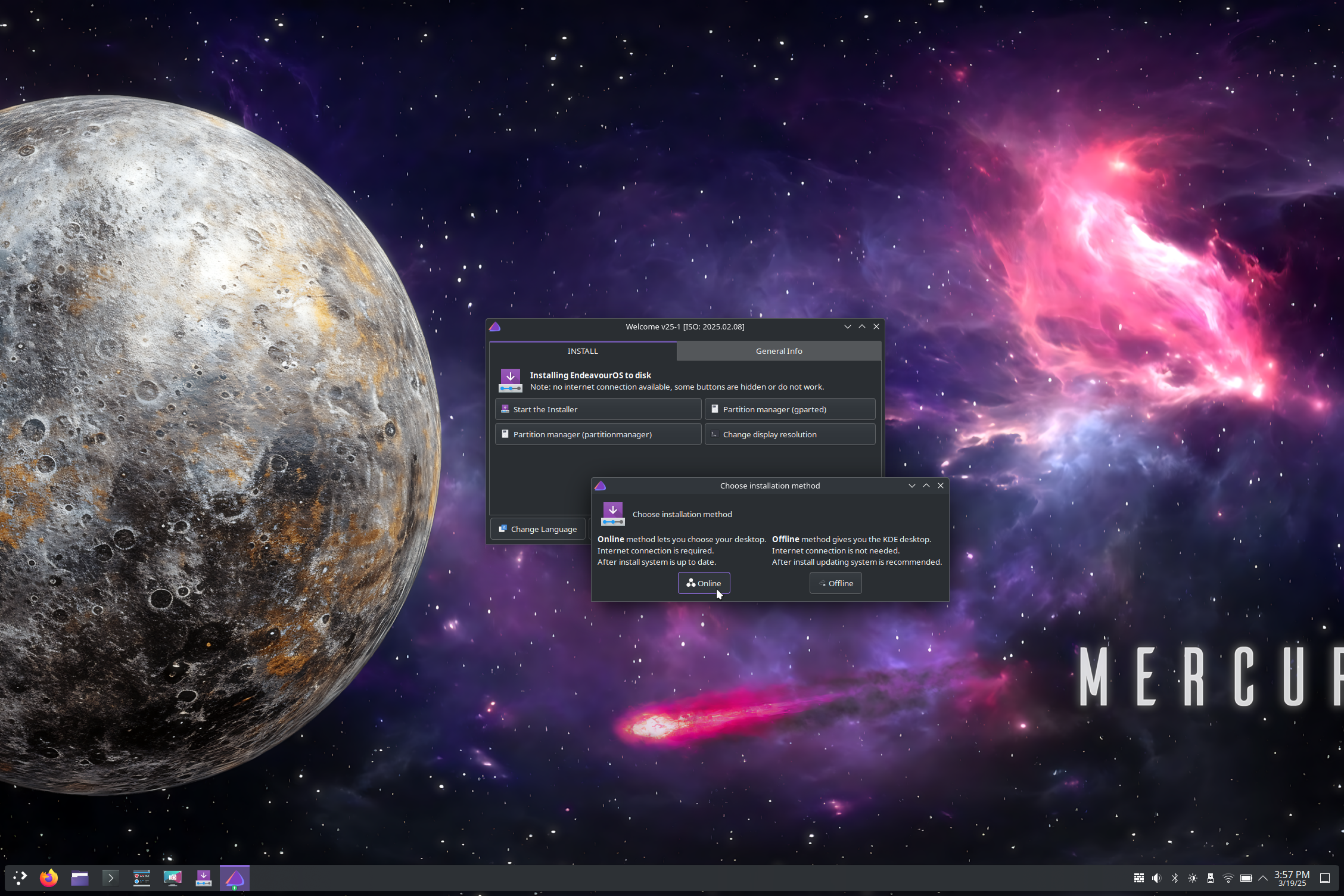
Once you’ve connected to Wifi, click ‘Start the installer’, followed by the ‘Online’ buttons. (You do not need to select ‘Online’ at this step if you are planning to setup KDE (the default desktop environment that comes with Endeavour OS)).
Basic choices
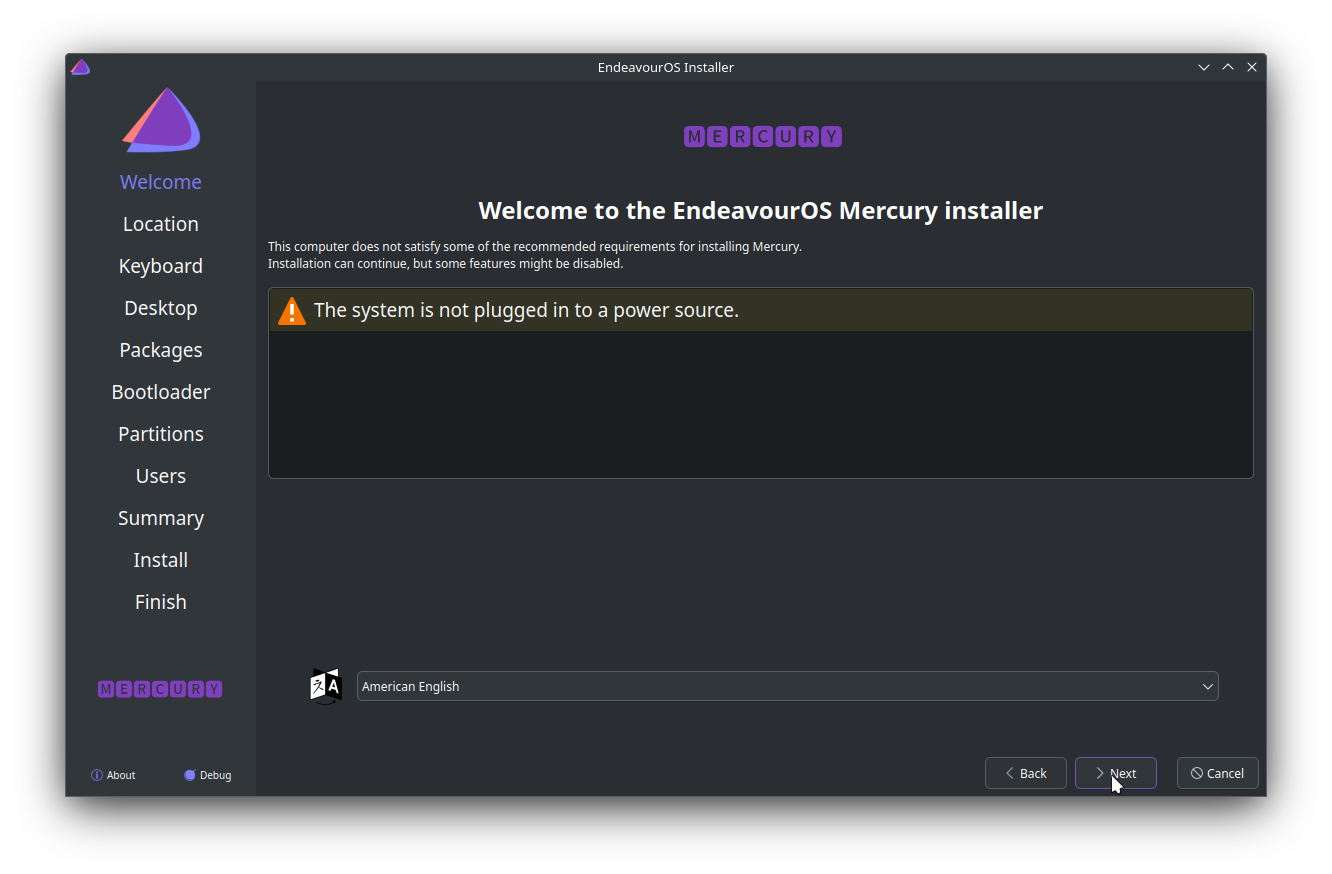
The first 3 steps of the installer’s wizard mode are fairly straightforward - Step 1 runs through a few checks, you will be presented with the things to be addressed before continuing. Some of the reported ‘issues’ are optional, you can choose to ignore them and click continue.
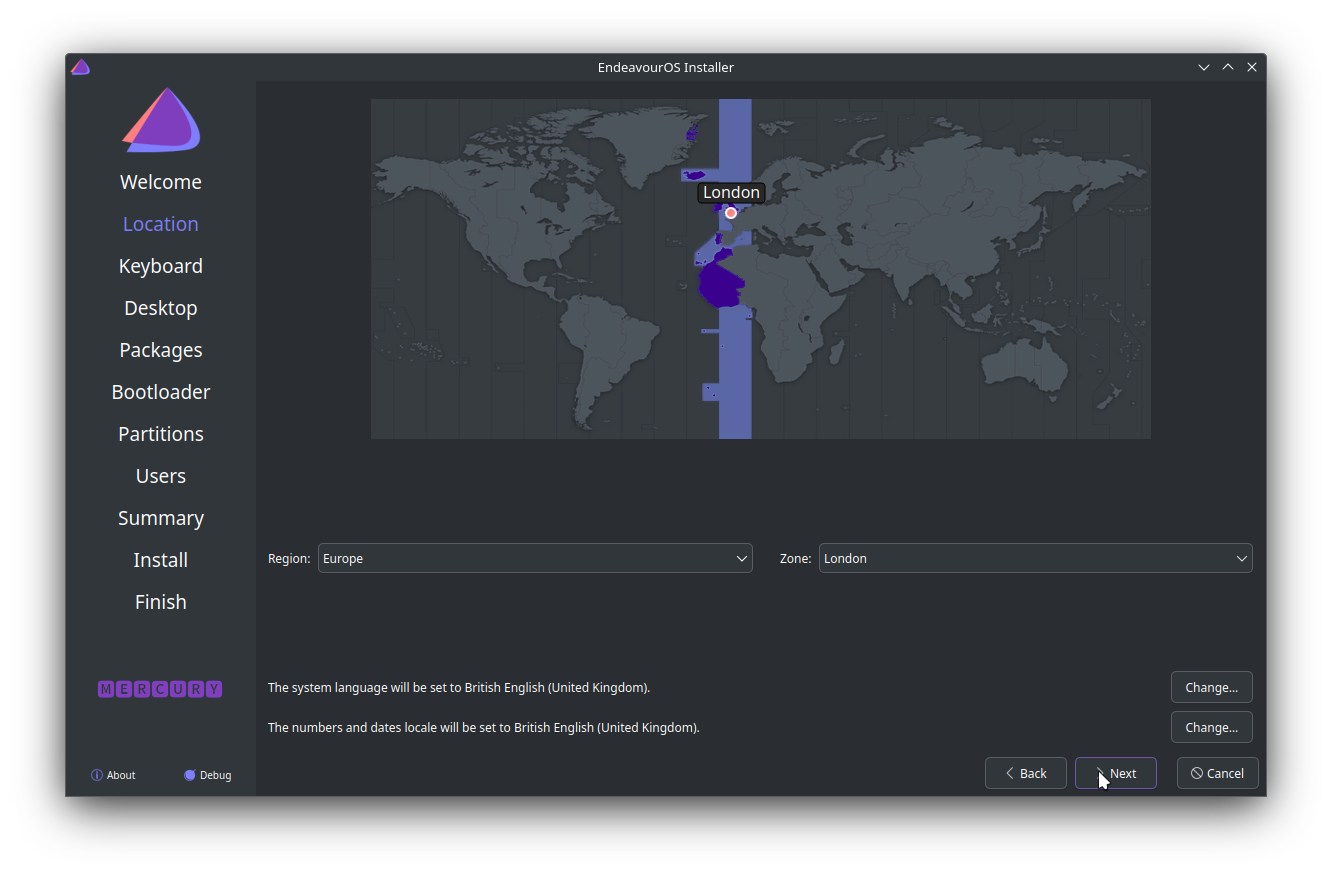
Timezone and the keyboard choices should have already been auto-detected. Unless if you need to change these, you can click Next.
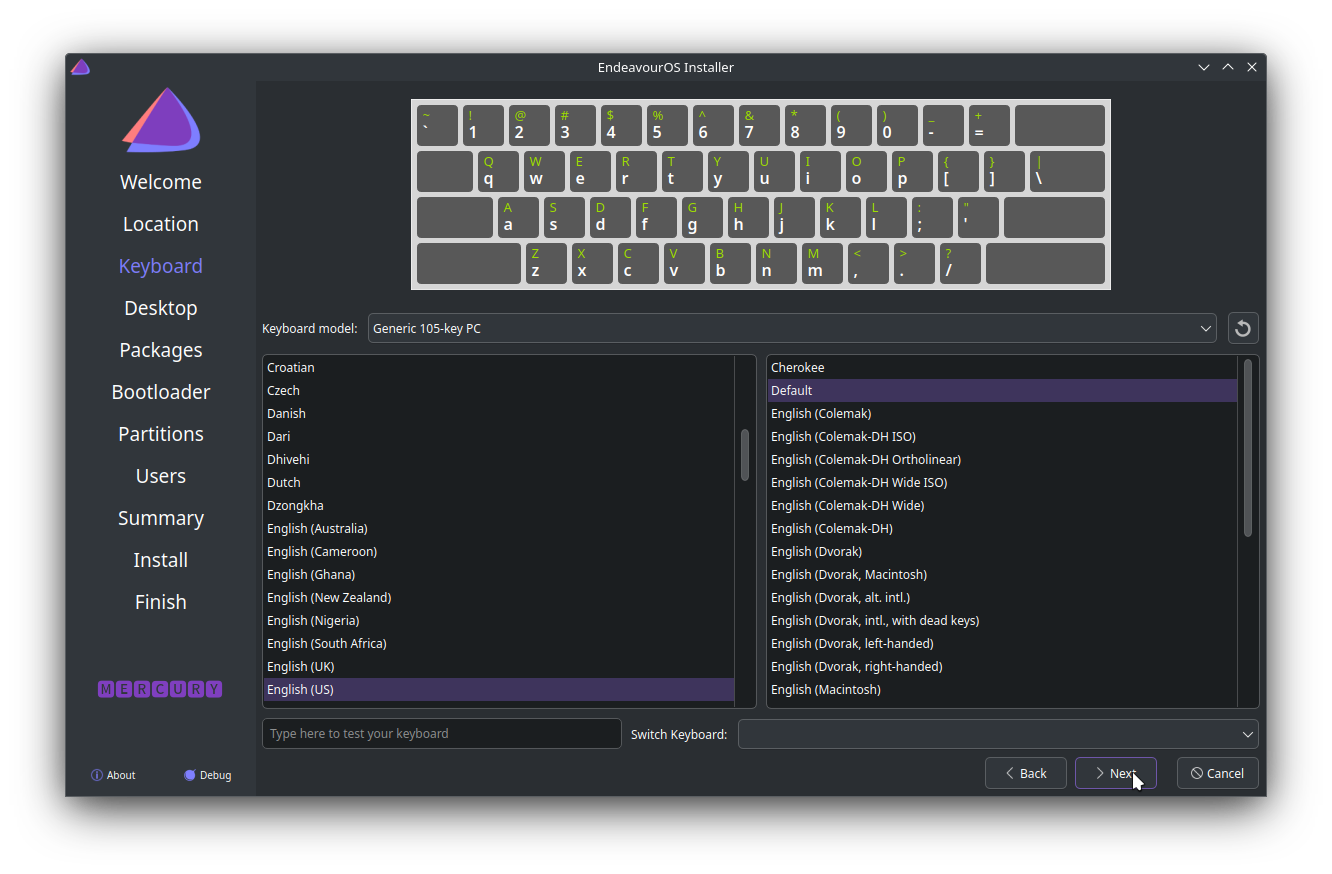
Configure the installation
We are making two main changes from the defaults selected by the installer:
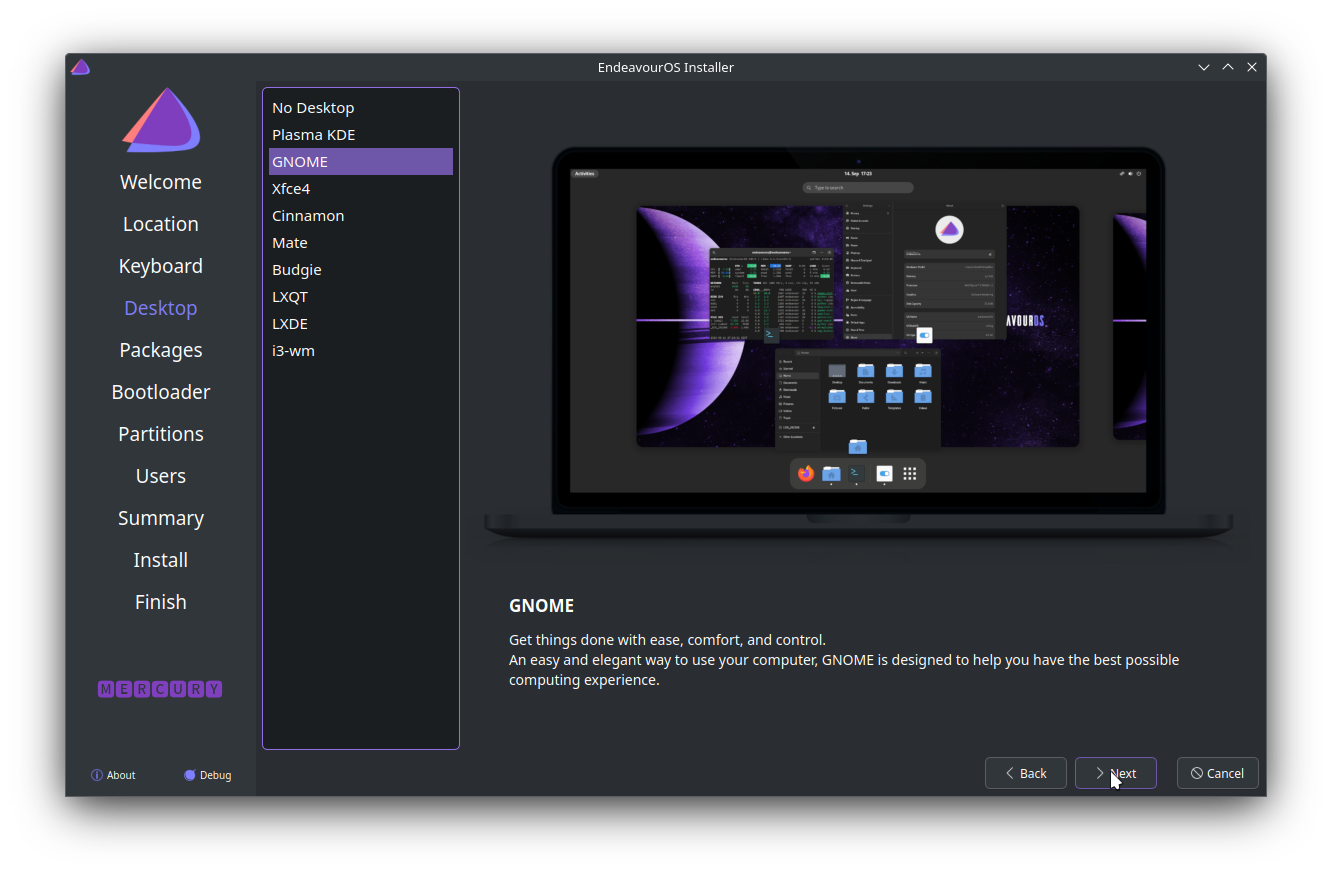
- The desktop environment (changing to GNOME from the default KDE)
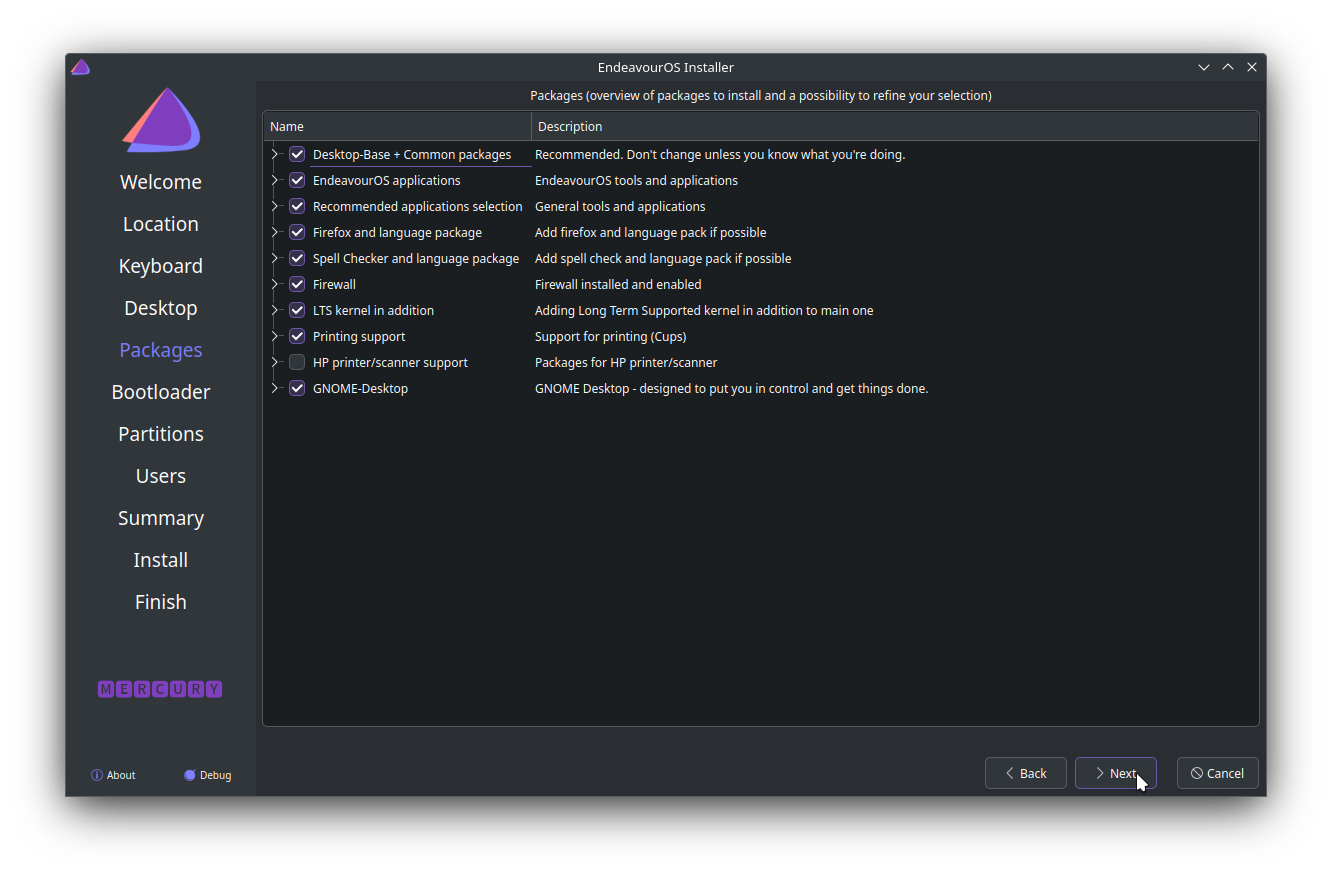
- Including LTS kernel and printing support (as needed)
These two choices are done in the next two pages of the installer. Select ‘GNOME’ on the Desktop page:
And include the ‘LTS kernel’ and ‘Printing support’ options on the ‘Packages’ step:
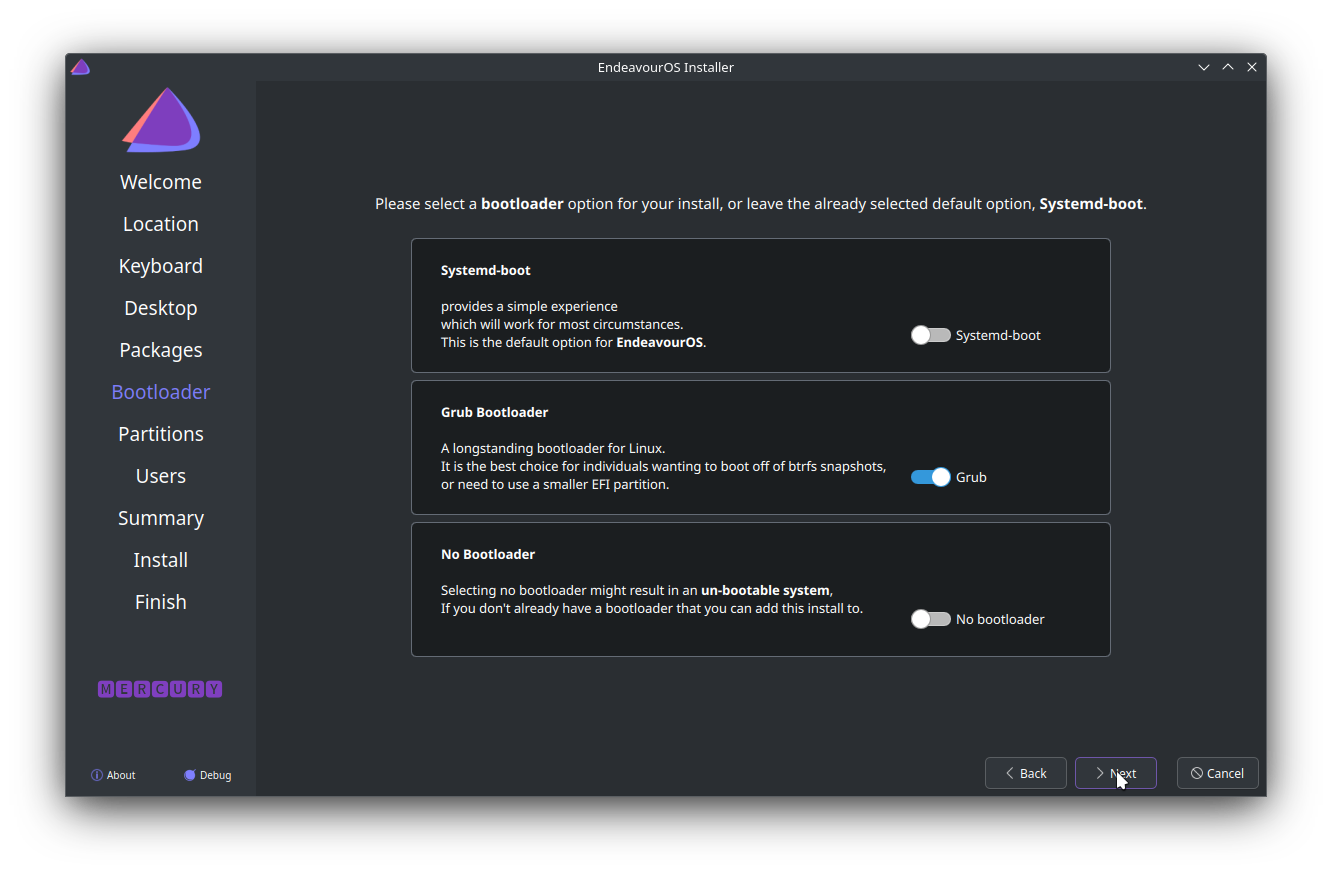
The ‘Bootloader’ is the program that is loaded first on any machine - the Endeavour OS installer would have selected ‘systemd’ by default - change this to GRUB, especially if planning to dual-boot Windows:
Partition the drive
The main ‘technically complex’ task that you will need to do is in this step - disk partitioning. What we are going to end up with is a partition table that looks like the below:
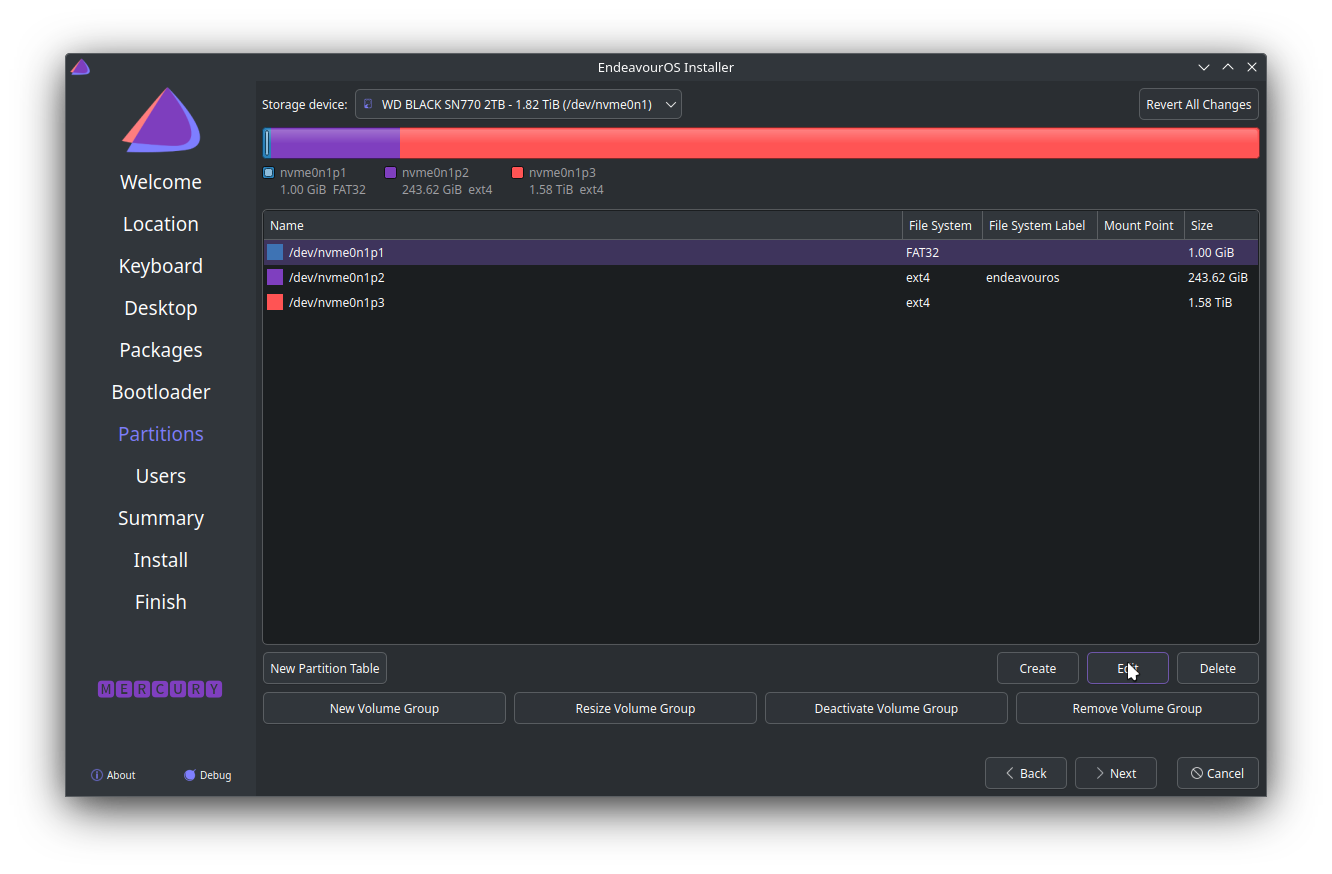
For our target installation, we need 3 partitions:
- For the GRUB bootloader (around 512MB-1GB)
- For the root (
/) - system partition (I have used 256 GB in the screenshot) - my machine is currently using about 41 GB after installation on this drive, so feel free to change this value as needed - For the data partition (I have used the
/nexusfolder) - all remaining space to be allocated to this partition
The separation of root and data partitions is recommended, but not mandatory - you can choose to keep all data in the home folder. Separating the root and data partitions is similar to having a C:\> drive separate from the D:\> drive with Windows - the main benefit with this approach is that the operating system can be restored without losing the data on the D:\> drive.
When this screen opens, what you see will depend on your laptops setup - how many SSDs it has, the disk space available, what operating system the machine came with, etc. If you already had a version of Linux, then the installer would allow you the option of replacing an existing partition:
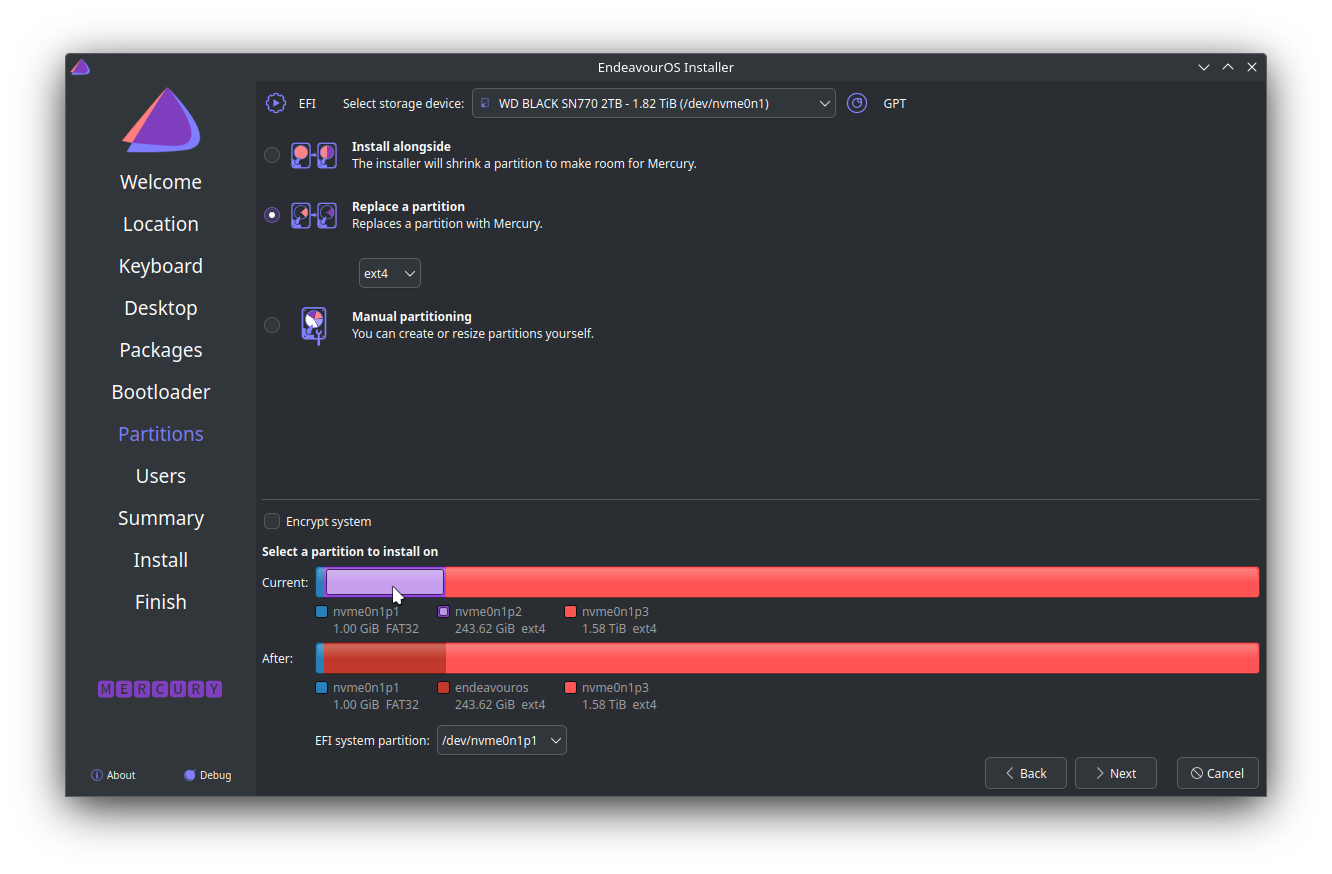
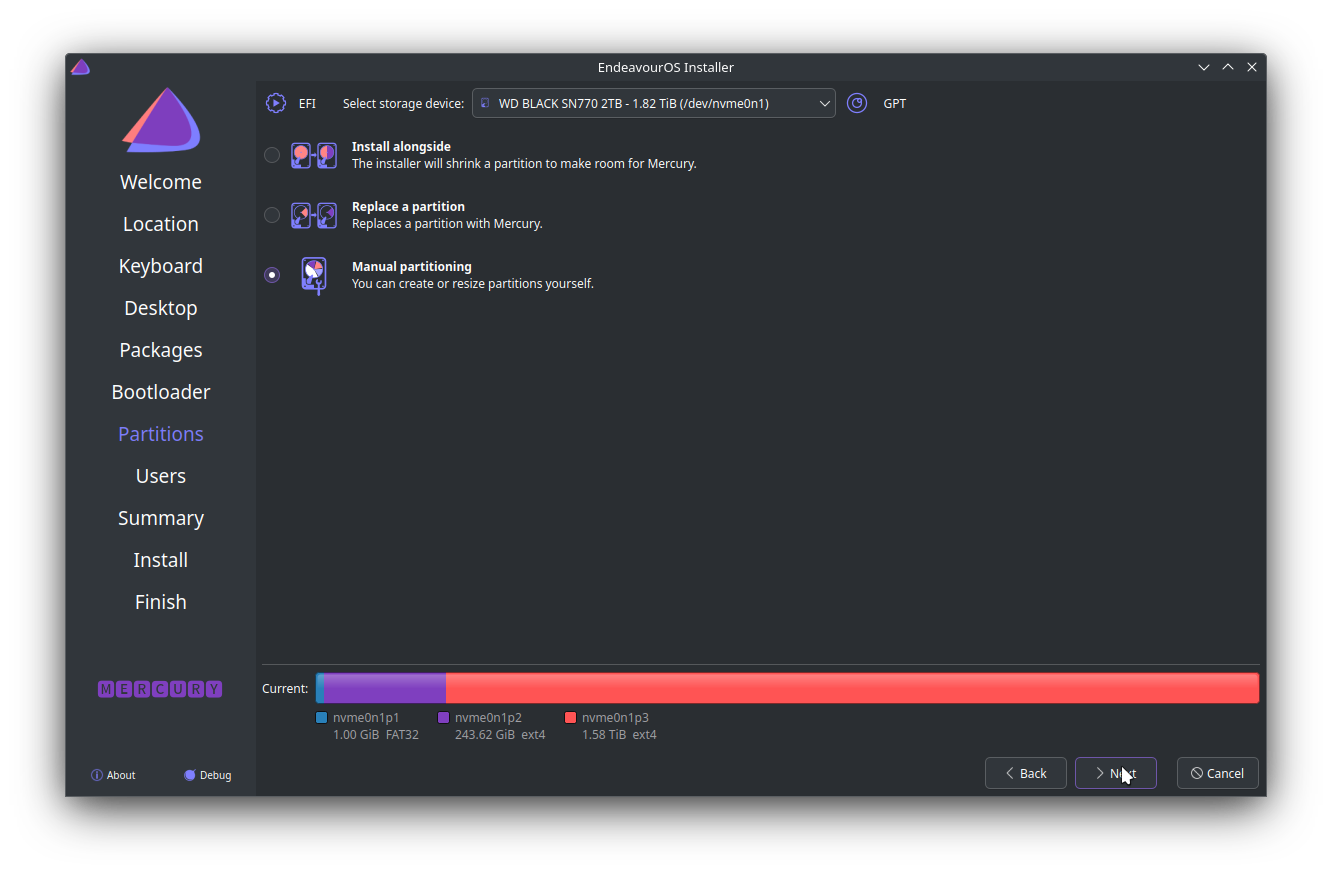
If you have never installed Linux on your machine before, select ‘Manual partitioning’ on this page to proceed to the next step, and on the following page, delete all existing partitions before creating the to-be slots. As mentioned earlier, this step is destructive - all data on the disk will be lost once the changes are written to disk.
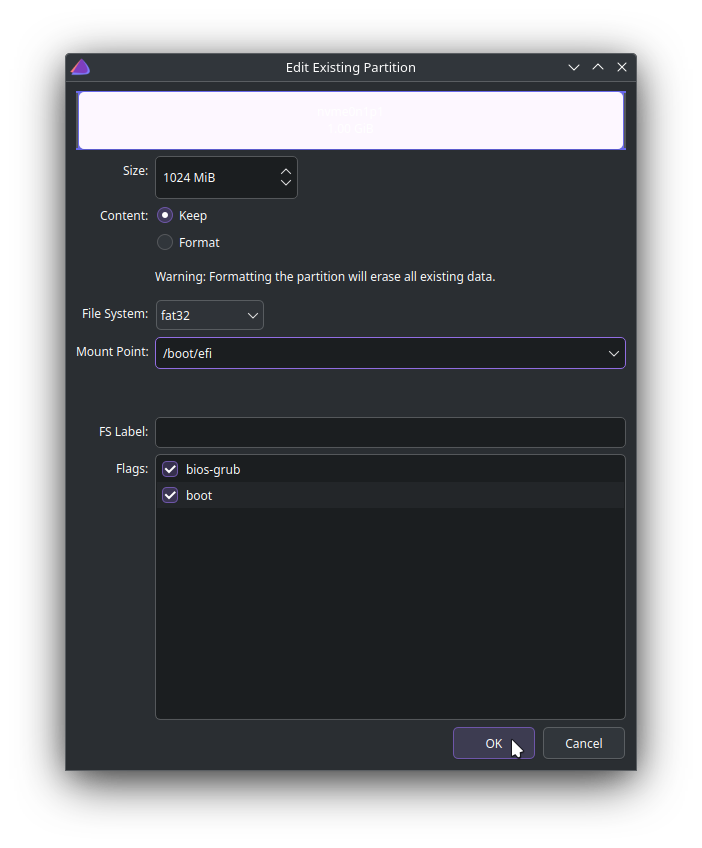
To create the boot partition, click ‘Create’, select 1024MB as size, fat32 as the filesystem type, /boot/efi as the mount point, and select the two bios-grub and boot checkboxes as shown in the screenshot below:
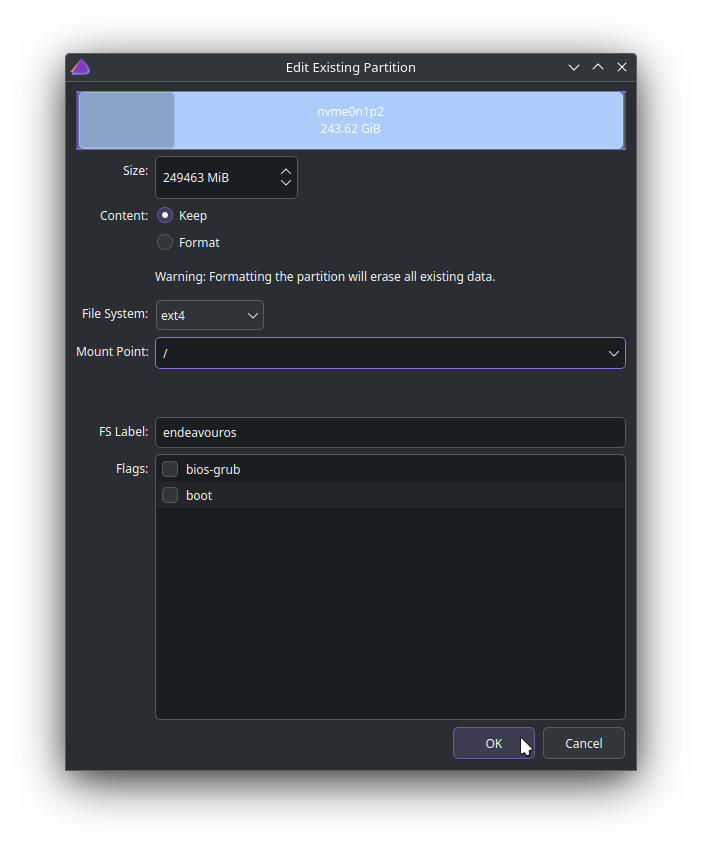
The root partition (/) is the system drive - where Linux lives. To create the root partition, click ‘Create’, select 262144MB as size, ext4 as the filesystem type, / as the mount point as shown in the screenshot below:
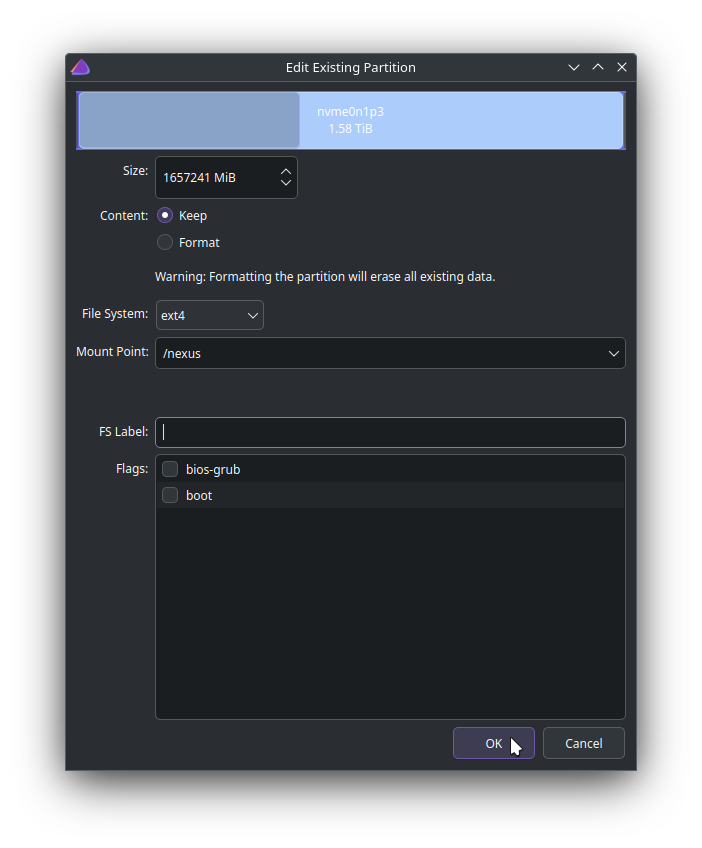
For the last, data partition, select a base folder you’d like to use as the main data folder - I use /nexus on my machine. To create the data partition, click ‘Create’, leave the partition size to fill the remaining space, ext4 as the filesystem type, /nexus as the mount point as shown in the screenshot below:
NOTE: /home on Linux is a system folder that will automatically be created during installation. A possible option for storing all data is to use /home itself as the data partition. /home typically contains configuration, preferences, settings for the installed applications, and I tend to keep this partition separate from the way my content is organized, but this is just my choice. (There are a few considerations around portability of the .dotfiles from the /home folder across distros as well).
Verify that the end-state of the newly created partition table looks similar to the screenshot below, then click ‘Next’ (your version could have differences based on the machine, model, disk space available, etc).
At this point, the installer should display a warning that changes are about to be written to disk. Accept this and click ‘Next’. On the next screen, you will be asked to create the main user to use the system, and a name for the machine. At the moment I do not have a screenshot of this page, I’ll add this shortly.
Click ‘Next’ to start the installation, and sit back. Since we are doing an online install, the installer should take about 30 minutes to finish, subject to Wifi connection speed, selected packages, etc. Once the installer completes, you will be prompted to remove the drive and restart.
Restart the machine (and remove the USB drive) to boot into Linux on your laptop.
3. Post installation steps
The base install of Endeavour OS above should give you a working machine with a browser and a few built in applications. Over the base install, however we will need to carry out a few tasks to get to my version of a ‘finished’ state. This section lists the common things I do after the base installation - feel free to select/customise these to your needs.
The main post-install steps to carry out are grouped into:
- Setting up the data drive and swap file (system task)
- Install the preferred Software manager (
pamac-manager) - Install a set of preferred applications
- Preferences/settings that have become a de-facto ‘standard’ in the Linux world
Data drive, swap file
In the partition step above, we were supposed to select a custom mount point for the data partition. If we did not select a custom mount point, then the partition would have been created, but there would be no way to get to this partition. To access this partition, we need to setup a mount point (/nexus as a sample), and configure the OS to mount the partition at this folder. The steps to do these are below. NOTE: These steps need to be run in a Terminal window (press the Windows (system) key and type ‘Terminal’ or ‘Console’ to get to the Terminal app).
sudo blkidThis will list the 3 partitions we created - select the UUID of the partition that is NOT tagged with ‘EFI System Partition’ or ‘EndeavourOS’ - we will use this UUID in the next step.
sudo mkdir /nexus
gnome-text-editor /etc/fstab
Add the below lines, save:
# /nexus - main data drive
UUID=INSERT_UUID_HERE /nexus          ext4    defaults        0       2
Replace the INSERT_UUID_HERE text in the line above with the UUID of your data partition. Again, if you selected the custom mount point during installation, this step is not required.
If your machine has limited memory, and you prefer to use a swap file for extended (virtual) memory, create/enable swap using the below commands: (Swap instructions from [https://itsfoss.com/create-swap-file-linux/])
Check the presence of swap:
free -hCreate a swap file, enable it using:
sudo fallocate -l 20G /swapfile # Select an appropriate size that is 1.25 to 1.5 times available physical memory
sudo chmod 600 /swapfile
sudo mkswap /swapfile
sudo swapon /swapfile
Check/verify that it was enabled correctly using free -h.
Enable the file on boot by adding the following lines to /etc/fstab (gnome-text-editor /etc/fstab):
/swapfile none swap sw 0 0Restart.
Software Manager
Most distros include a ‘Software Applications’ manager to help install packages/applications. My preferred manager is pamac’s GUI. I think I first came across this when using Manjaro, liked its simplicity and have stayed with it. Pamac reduces the dependency on using a Terminal to install other packages/applications (step 2 below).
Pamac gives you a graphical interface to install apps:
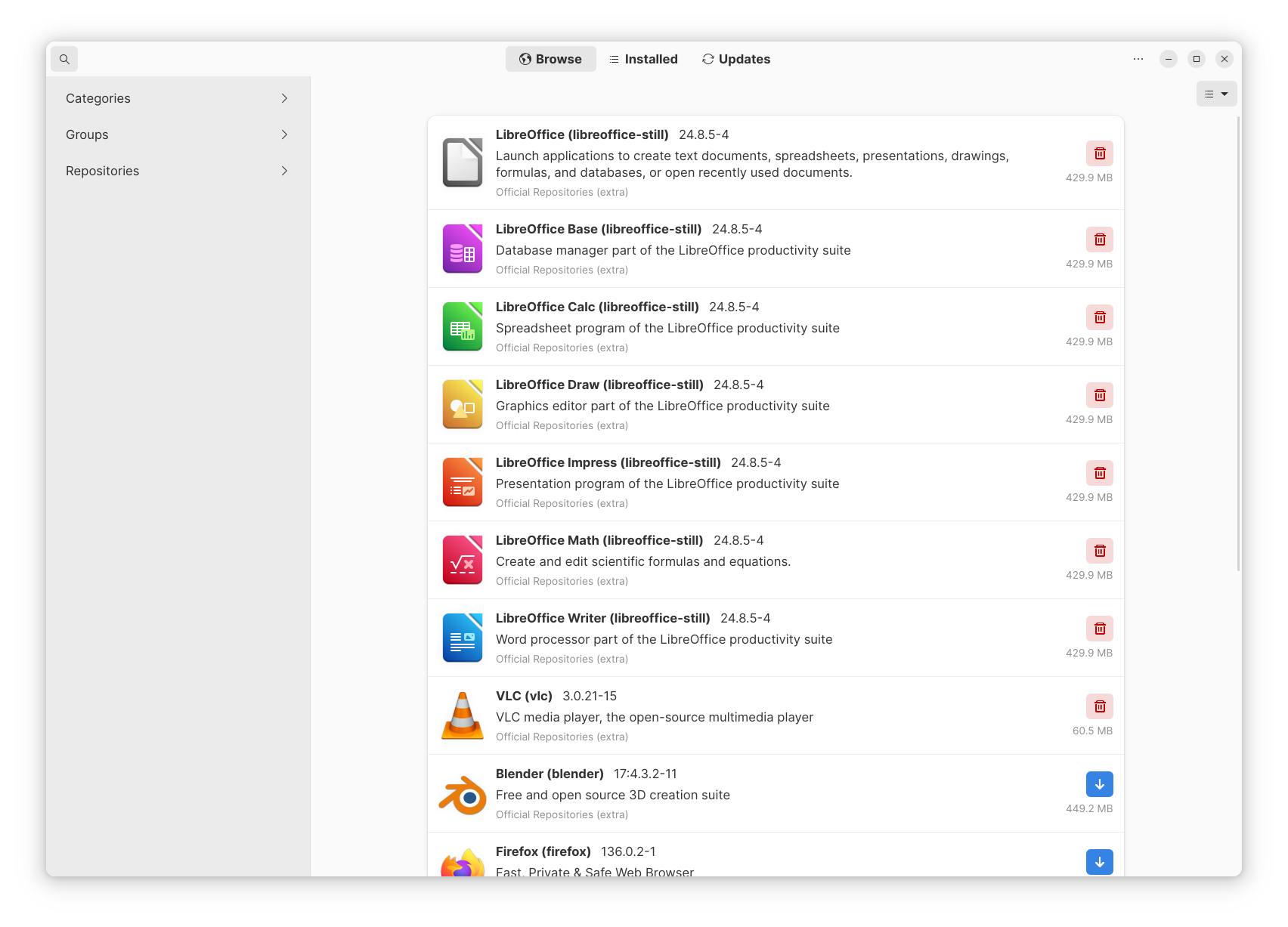
To install pamac, run the below commands in a Terminal:
yay -S pamac #Select the 2-pamac-aur option, defaults for the rest of the options (keep pressing Enter, wait till it finishes).Once installed, you should be able to find ‘Add/Remove Software’ in the applications menu.
Open this application, select the Preferences menu (three dots in the top-right of the window), and update the following settings:
- Update the ‘Refresh frequency’ (if needed)
- Enable AUR (‘Third party’ tab)
- Reload databases (same three dots menu)
Now the rest of the preferred applications can be carried out using pamac’s interface instead of the command line.
Preferred Applications
- Open pamac-manager (Press the system key, type
pamac-manageror ‘Add/Remove Software’, press Enter) - Search for and install (Applications):
foliate,gedit,gimp,inkscape,keepassxc,libreoffice-still,rofi,tilix,veracrypt,vivaldi,vlc,vscodium-bin,zen-browser-bin - Search for and install (Utilities, theme, extensions):
bashtop,conky-cairo,fish,neovim,inter-font,ttf-agave,breeze-default-cursor-theme,adw-gtk-theme,gnome-shell-extensions,gnome-shell-extension-dash-to-dock,gnome-shell-extension-blur-my-shell,glib2
If you’ve chosen to use the AppImage versions of specific applications, you can ignore them from the list above. (You can also ignore zen-browser and vivaldi from the list above if the default Firefox works for you).
Settings/Preferences
If you are comfortable with the default appearance/settings, that’s pretty much all that you need. However, if you are like me, and you want your desktop to look exactly like the screenshot I’ve used, then you would need to apply the settings changes listed below. These changes are applied using 3 different applications:
- GNOME Tweaks (search for ‘Tweaks’ in the applications menu)
- GNOME Settings (search for ‘Settings’)
- Keyboard shortcuts (under ‘Keyboard’ in ‘Settings’)
- GNOME extensions (search for ‘Extensions’)
- Other customisations
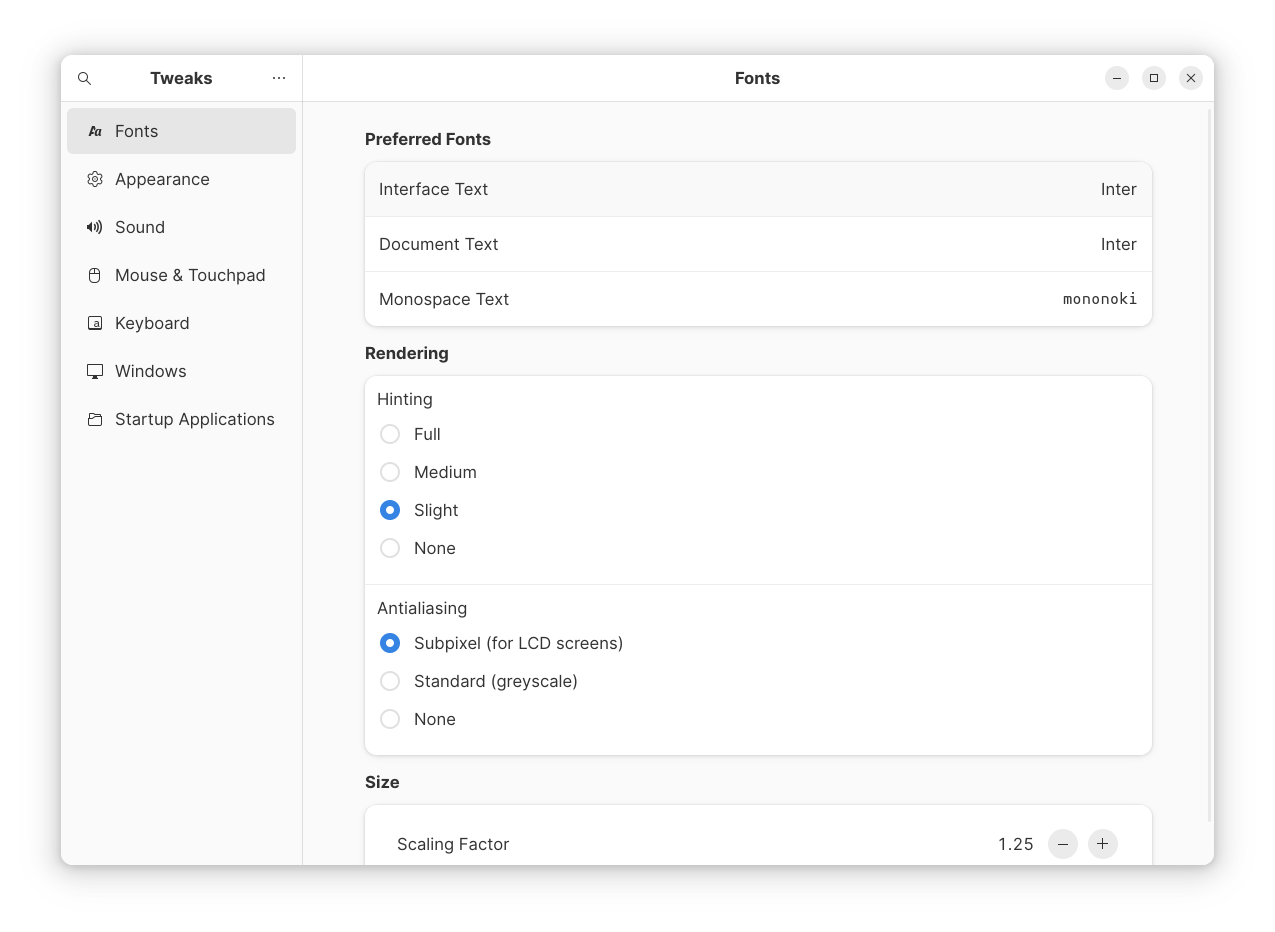
1. Settings to change in the ‘Tweaks’ application:
- Font: Scaling to 1.2, fonts to Inter, Agave
- Appearance: Cursor to Qogir, Icons to Qogir-Dark
- Windows: ‘Attach modal dialogues’ off, ‘Center windows’ on
2. Preferences to change in GNOME ‘Settings’:
- Appearance: Dark vs Light theme, select the desired wallpaper
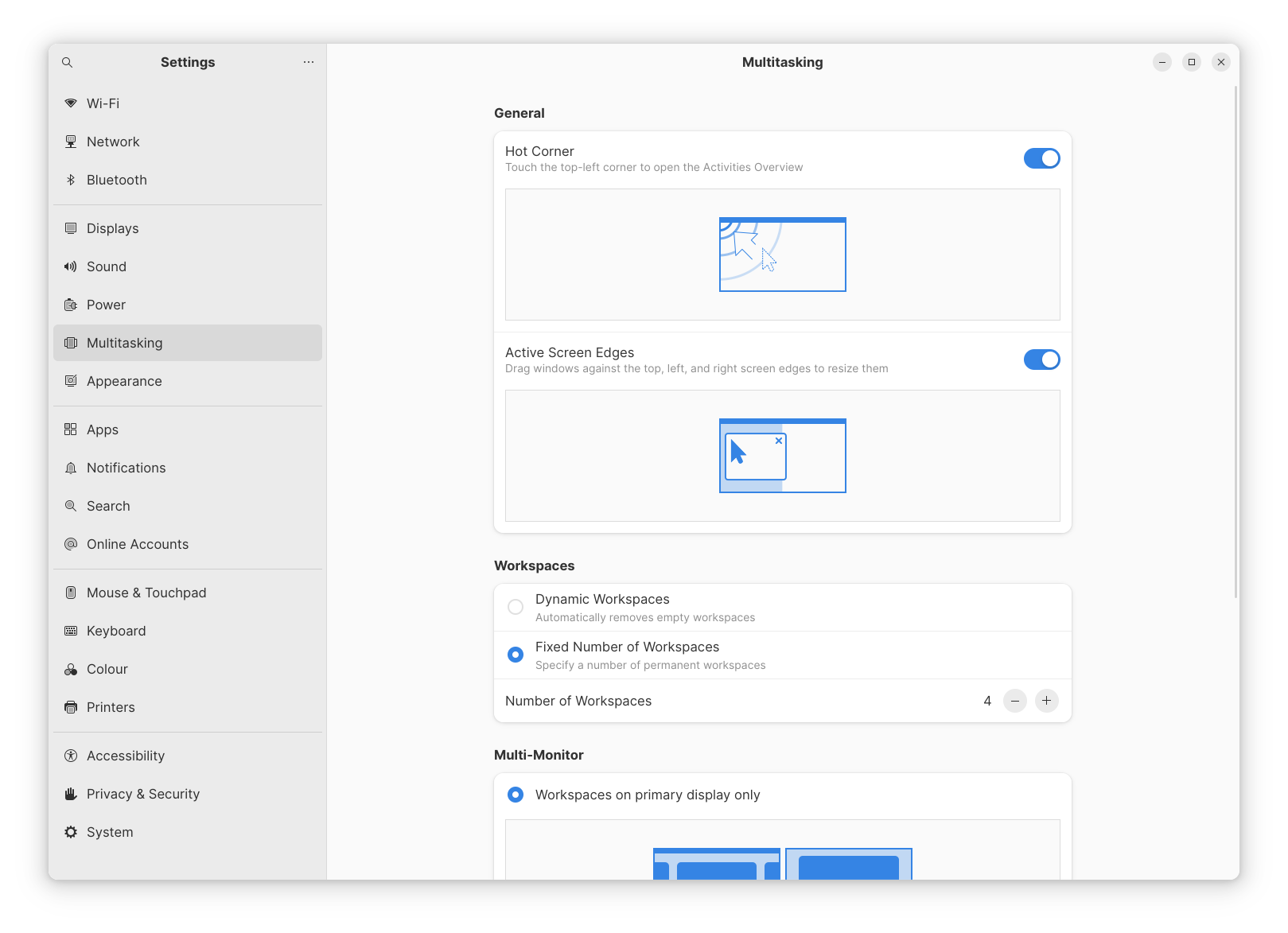
- Multitasking: Fixed number of workspaces (I typically use 4 workspaces)
- Power Management: Disable auto brightness, select Balanced/Performance as the target
3. Keyboard shortcuts Under the keyboard section in ‘Settings’, select ‘Keyboard’ and click ‘View and Customise Shortcuts’ -> ‘Navigation’ to get to the dialog below:
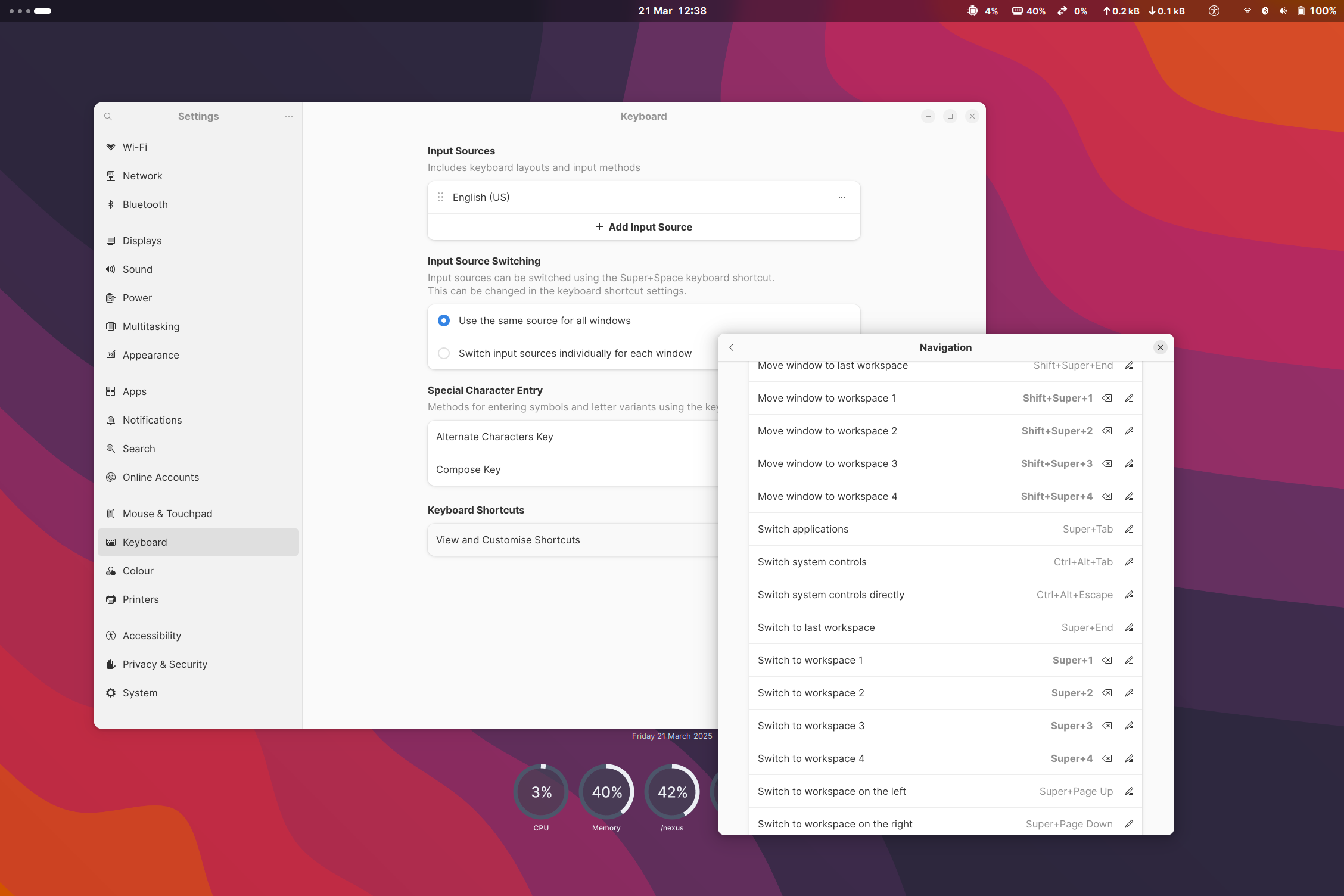
Update the settings for ‘Move window to workspace N’ and ‘Switch to workspace N’ to Cmd+Shift+N and Cmd+N sets as shown above.
Select ‘Back’, change to the ‘Custom shortcuts’ section, and add two custom shortcuts - one for Tilix and one for ROFI as described below:
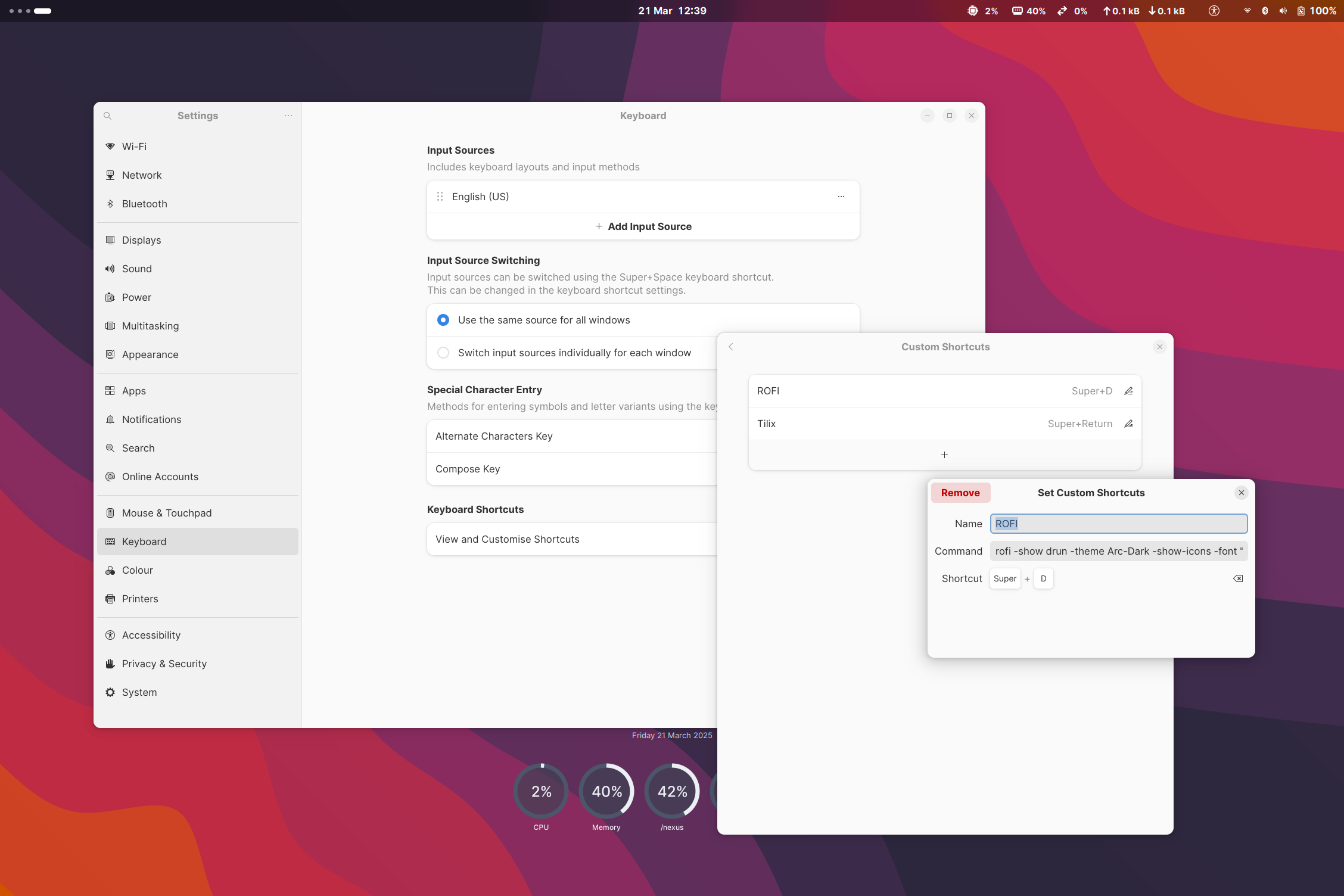
- Name: ROFI, Command:
rofi -show drun -theme Arc-Dark -show-icons -font "Inter 13" -line-margin 7 -line-padding 7 -width 35, shortcut:Cmd+D - Name: Tilix, Command:
tilix, shortcut:Cmd+Return
To use ROFI, press Cmd+D, followed by the first few characters of the target application/file, and press Enter to open the selected app/content:
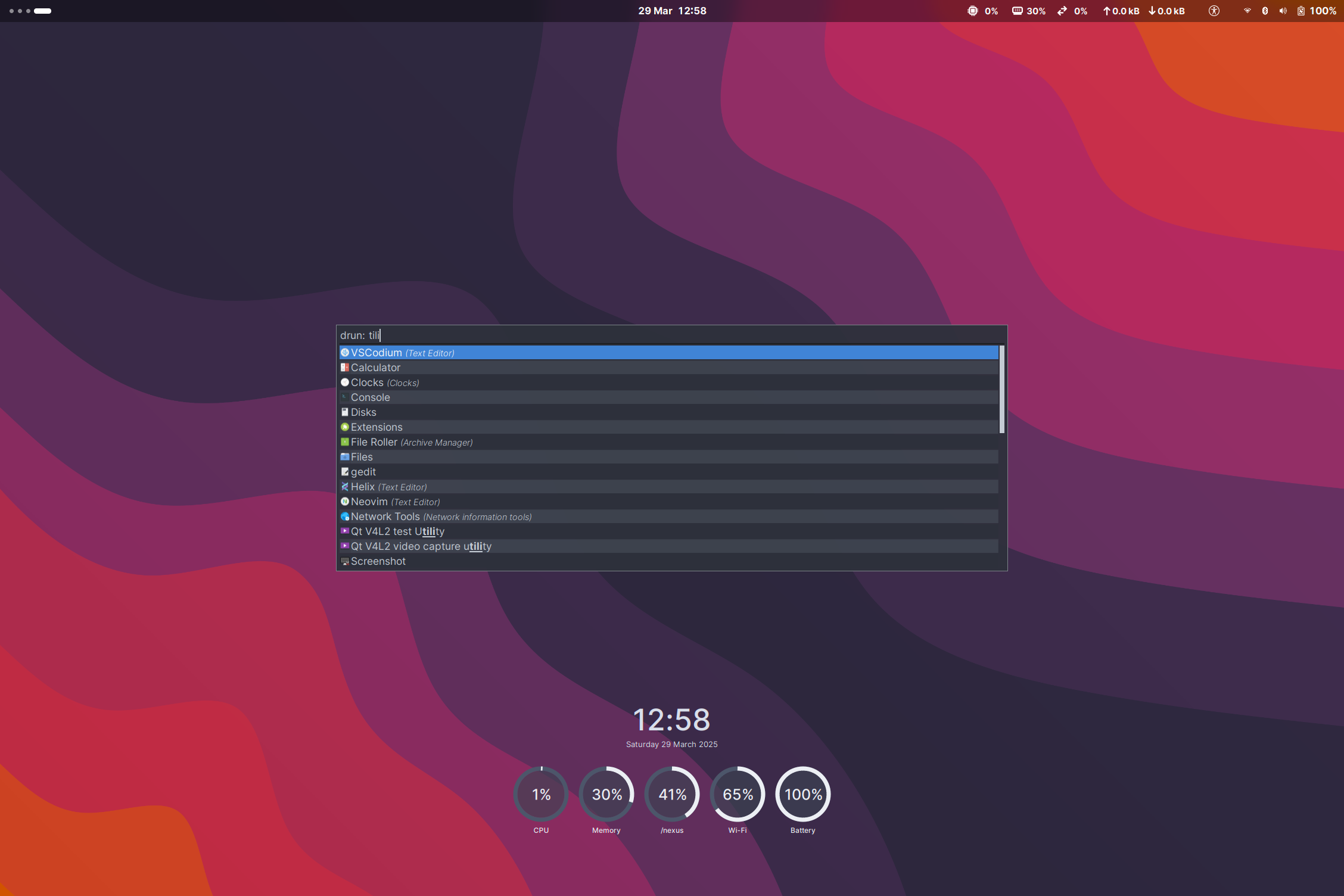
This is again a question of preference - ROFI is a lightweight alternate launcher for the inbuilt applications list. While the inbuilt system applications list gives you a way to search/launch applications and bookmarked/key folders only, ROFI allows you to search/directly access a lot more content on the machine. Same comment applies to Tilix as well - which Terminal application to use is a question of preference - I prefer Tilix for the customisable layouts - multiple terminals within a single window, with the ability to group them into workspaces.
4. Settings to be updated in ‘Extensions’: The last set of preferences to be updated are the extensions to enable - open the ‘Extensions’ application and enable the below two extensions:
- ‘System Monitor’ - metrics (CPU/memory use displayed on the top menu)
- ‘Blur my shell’ - makes specified windows/apps to be rendered with a blurred background (esp. Terminal windows)
To use the ‘Blur my shell’ extension, enable the extension, click ‘Settings’ (for the extension), ‘Applications’ tab, click the ‘Add Window’ button and select the app to which the blur is to be applied.
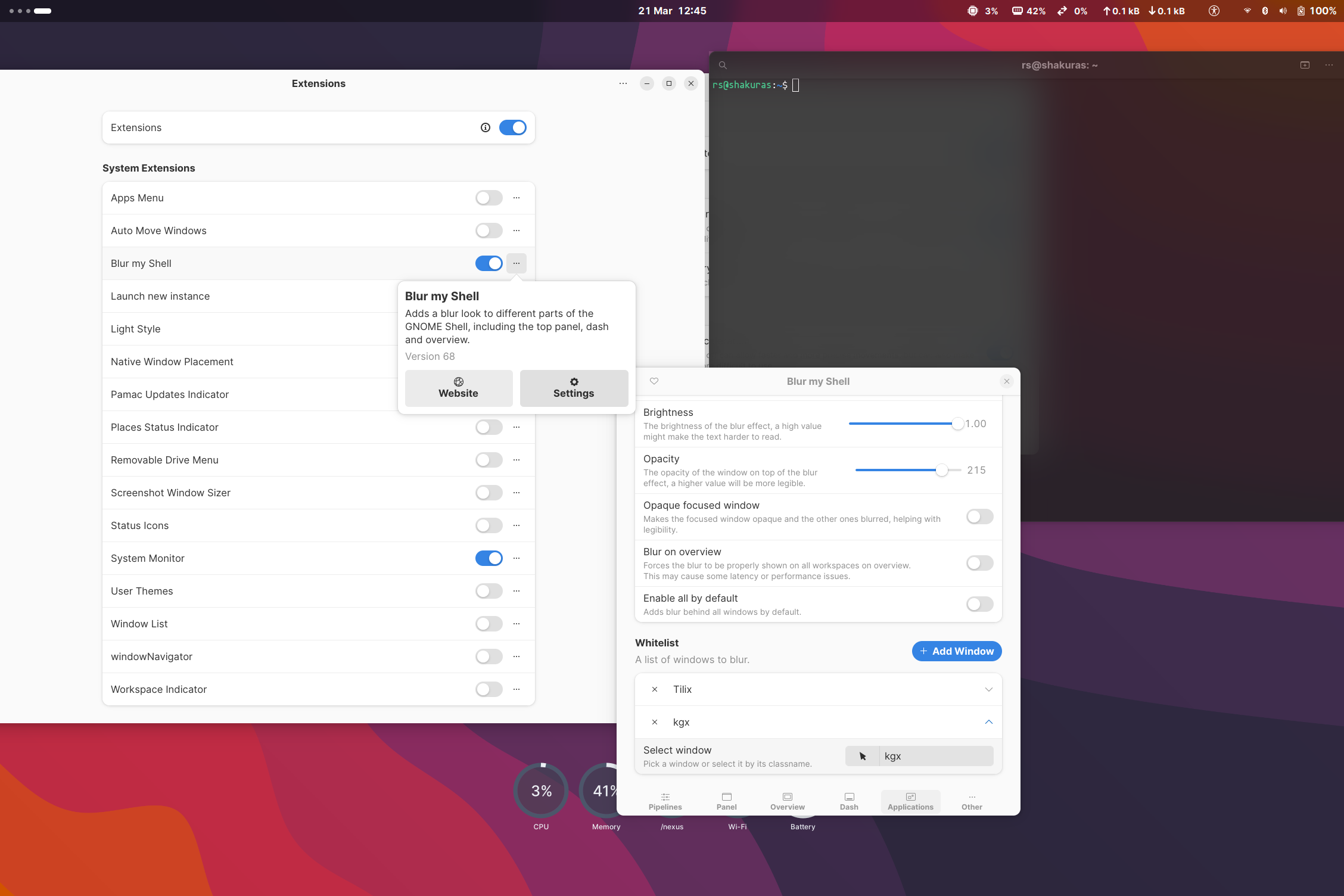
Enabling the ‘Blur my shell’ extension for Tilix gives you terminal windows with a background as shown in the screenshot below:
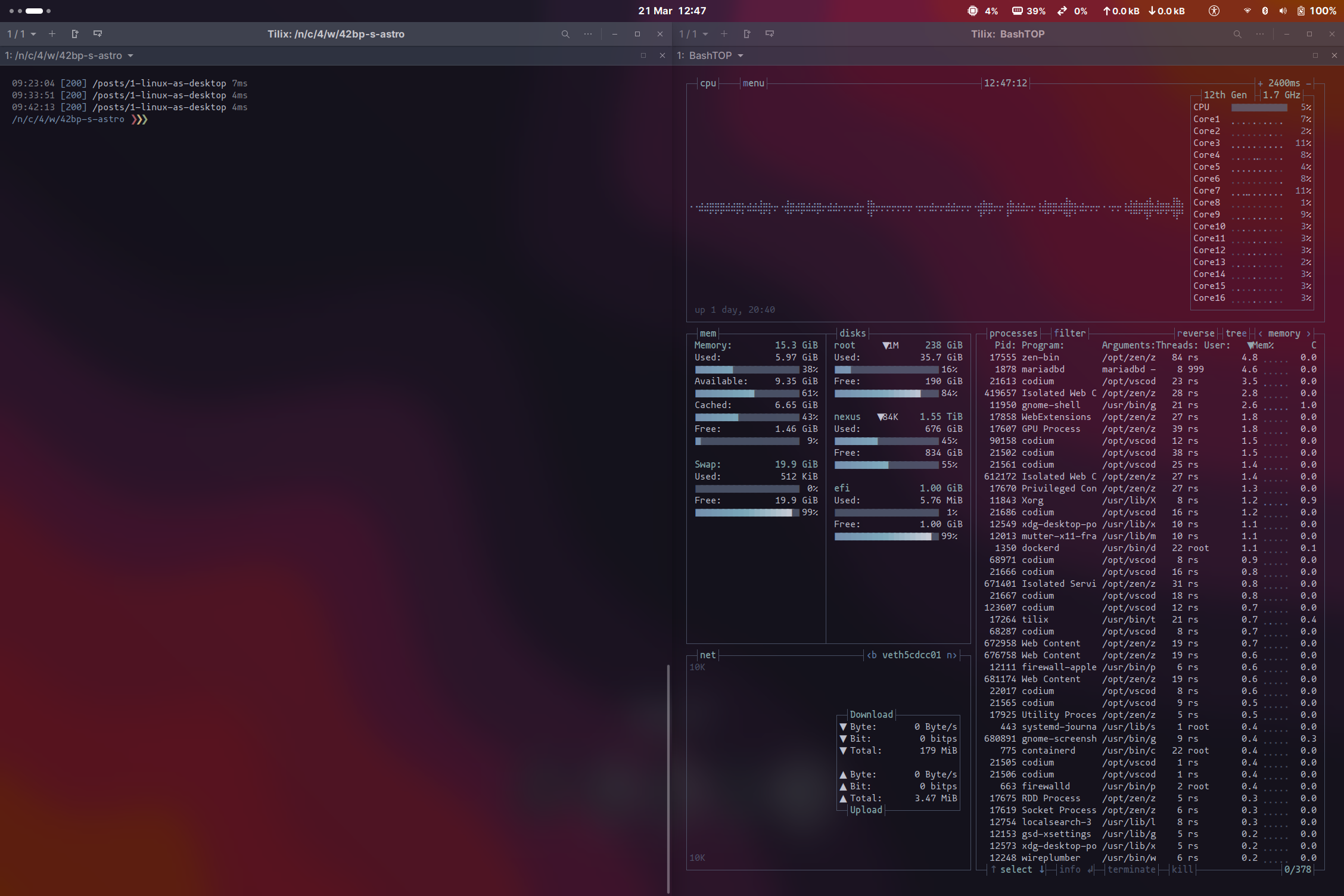
5. Other customisations
- Enable the 20 pixel border for tilix by adding the below to
~/.config/gtk-3.0/gtk.css:
.tilix-background vte-terminal {
  padding: 20px;
}-
For those of you who have noticed by now that Vivaldi’s address bar font is not our preferred ‘Inter’, the font can be changed by using
gnome-text-editor /opt/vivaldi/resources/vivaldi/style/common.css, find replace Cantarell with Inter. -
If you prefer to align the VSCodium theme to the Nord theme as in the screenshot below:
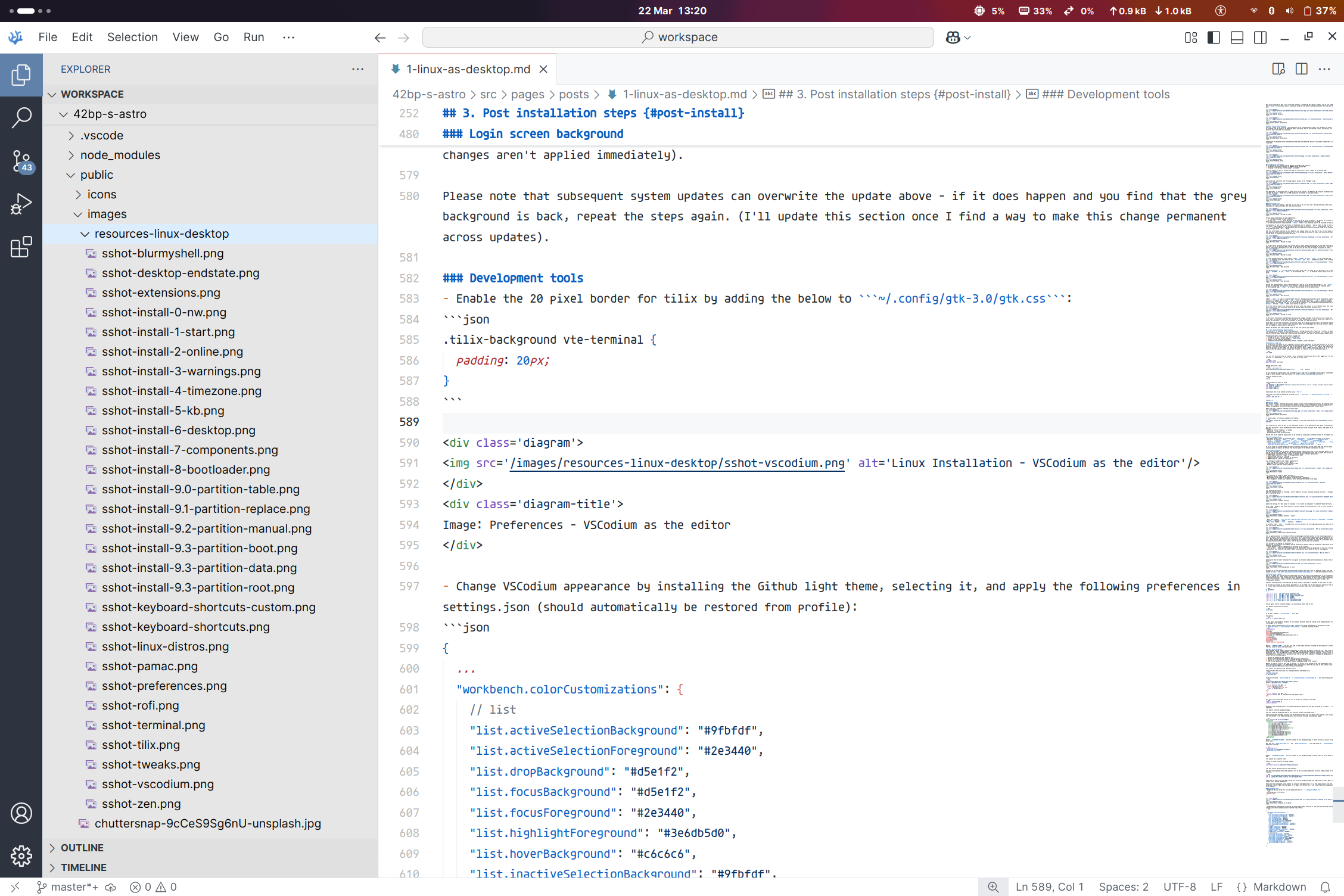
- Change VSCodium appearance by installing the Github light theme, selecting it, and apply the following preferences in
settings.json(should automatically be restored from profile):
{
  ...
  "workbench.colorCustomizations": {
    // list
    "list.activeSelectionBackground": "#9fbfdf",
    "list.activeSelectionForeground": "#2e3440",
    "list.dropBackground": "#d5e1f2",
    "list.focusBackground": "#d5e1f2",
    "list.focusForeground": "#2e3440",
    "list.highlightForeground": "#3e6db5d0",
    "list.hoverBackground": "#c6c6c6",
    "list.inactiveSelectionBackground": "#9fbfdf",
    "list.inactiveSelectionForeground": "#ffffff",
    // sideBar
    "sideBar.background": "#e6e6e6",
    "sideBar.foreground": "#000000",
    "sideBarSectionHeader.background": "#e0e0e0",
    "sideBar.border": "#bfbfbf",
    "sideBarTitle.foreground": "#124078",
    // activity Bar
    "activityBar.background": "#2e3440",
    "activityBar.activeBackground": "#5e81ac",
    "activityBar.foreground": "#ededed",
    "activityBar.inactiveForeground": "#ededed",
    "activityBar.activeBorder": "#ffffff00",
    "activityBar.dropBorder": "#ffffff",
    "activityBarBadge.background": "#5e81ac",
    "activityBarBadge.foreground": "#ffffff",
  }
  ...
}
System monitor (Conky)
The dials (on the desktop background) are provided by a system monitor utility called ‘Conky’. While we have installed conky already as part of the ‘Preferred Applications’ step, we have not really enabled the system monitor to start on login. Conky is also customisable with themes - the dials are a theme I wrote a few years back (inspired by the observability dials in NASA’s Mars ‘Preseverance’ mission).
The dials are essentially 3 files that use the Cairo library - this theme is available at this public Git repo: https://github.com/legend-zeratul/conky-dials
To get the dials working on your machine, download a zip of the theme from the Git repository and extract the contents to a local folder. Once extracted, the contents of the directory should have the following files:
cd conky-dials
ls -l

-rw-r--r-- 1 rs rs    4682 Feb 20 16:19 conky-dials.lua
-rw-r--r-- 1 rs rs    1328 Nov  8 19:14 conkyrc-dials.conf
-rw-r--r-- 1 rs rs    1973 Mar 11  2021 conkyrc-workspaces.conf
-rw-r--r-- 1 rs rs    1071 Mar 11  2021 LICENSE
-rw-r--r-- 1 rs rs    4667 Mar 11  2021 README.md
-rw-r--r-- 1 rs rs 1068727 Mar 11  2021 sshot-desktop-1.png
-rw-r--r-- 1 rs rs  920532 Mar 11  2021 sshot-desktop-2.png
You can ignore the two screenshot images - you can actually delete them as well.
Test whether conky exists by running:
which conkyIf you get a response /usr/bin/conky, we’re good.
Try running:
conky -d -c ./conkyrc-dials.confAt this point, you should get the dials on your machine, and Conky should be running in the background while printing a few messages to the console.
To enable Conky to automatically start at login, create a file called conky.desktop in the autostart folder (gnome-text-editor ~/.config/autostart/conky.desktop), with the following contents:
[Desktop Entry]
Version=1.0
Name=Conky
GenericName=Lightweight System Monitor
Comment=Conky System Monitor
Exec=conky -d -c CONKYDIALS_HOME/conkyrc-dials.conf &
Terminal=false
Type=Application
Categories=Utility;
StartupNotify=true
Hidden=false
X-GNOME-Autostart-enabled=true
Replace CONKYDIALS_HOME with the full path of the folder where you extracted the Git repository’s contents. Save the file, close the editor and logout/login.
Login screen background
GDM (the GNOME display manager component responsible for login) will by default present you with a grey screen when the laptop boots up. Other display managers (LightDM, SDDM, etc) provide the ability to customize this screen (by setting a background, etc.), but the GDM team in their infinite wisdom have taken a different approach: resource files used by the component are compiled into a .gresource file that is used by the component. To change the background of the login screen, we will therefore need to:
- Extract the contents of the
.gresourcefile - Add our preferred background image and the appropriate configuration
- Compile the
.gresourcefile with the image and the updated configuration - Move the new
.gresourceto the original location (keeping a backup of the original)
Whether you need to carry out this step is optional - if you are not as annoyed by the grey background as I am, you can opt to ignore this section. I’ve added/updated these instructions in the Arch Linux wiki as well: https://wiki.archlinux.org/title/GDM
1. Extract the contents of the .gresource file
Create a folder that we will use as a working directory, and change to it:
mkdir gdm-theme-edit
cd gdm-theme-edit
Create a file called extract-theme.sh (gnome-text-editor ./extract-theme.sh) with the following contents:
#!/bin/sh
gst=/usr/share/gnome-shell/gnome-shell-theme.gresource
workdir=./gdm-theme-$(date '+%Y%m%d')

for r in `gresource list $gst`; do
  r=${r#\/org\/gnome\/shell/}
  if [ ! -d $workdir/${r%/*} ]; then
    mkdir -p $workdir/${r%/*}
  fi
done

for r in `gresource list $gst`; do
  gresource extract $gst $r >$workdir/${r#\/org\/gnome\/shell/}
done
Mark the script as executable and run the file to extract the contents of the theme:
chmod +x ./extract-theme.sh
./extract-theme.sh
Navigate to the created directory. You should find that the theme files have been extracted to it (under a theme subfolder).
2. Add your preferred background image
Copy your preferred background image to this directory (normal file manager task).
Create a file under the theme directory with the following content (the list below is for Gnome 47, just in case verify that the contents of the theme subfolder match the list here, including the background image):
<?xml version="1.0" encoding="UTF-8"?>
<gresources>
  <gresource prefix="/org/gnome/shell/theme">
    <file>calendar-today.svg</file>
    <file>calendar-today-light.svg</file>
    <file>gnome-shell-dark.css</file>
    <file>gnome-shell-light.css</file>
    <file>gnome-shell-high-contrast.css</file>
    <file>gnome-shell-start.svg</file>
    <file>pad-osd.css</file>
    <file>process-working-dark.svg</file>
    <file>process-working-light.svg</file>
    <file>workspace-placeholder.svg</file>
    <file>BACKGROUND_FILENAME</file>
  </gresource>
</gresources>
Replace BACKGROUND_FILENAME with the filename of your background image or remove the line if you are using a hex color value.
Now, open the gnome-shell-light.css and gnome-shell-dark.css files and change the #lockDialogGroup definition as follows:
#lockDialogGroup {
  background: url("BACKGROUND_FILENAME");
  background-size: cover;
}
Replace BACKGROUND_FILENAME with the filename of your background image (filename should be within quotes in the CSS).
3. Compile the .gresource file
Compile the theme using the following command:
glib-compile-resources gnome-shell-theme.gresource.xml4. Move the new .gresource file to the location
Copy the resulting gnome-shell-theme.gresource file to the /usr/share/gnome-shell directory (keep a backup of the original).
sudo cp /usr/share/gnome-shell/gnome-shell-theme.gresource /usr/share/gnome-shell/gnome-shell-theme-original.gresource
sudo cp ./gnome-shell-theme.gresource /usr/share/gnome-shell
Logout and you should find that gdm is using your preferred background image. You might need to restart gdm if the changes aren’t applied immediately.
Please note that subsequent system updates can overwrite the update above - if it does happen and you find that the grey background is back, repeat the steps again. (I’ll update this section once I find a way to make this change permanent across updates).
Install/Configure Docker
Setting up Docker on Linux is fairly straightforward - Docker is available in the Official Arch Repositories, and so can be installed using ‘Add/Remove Software’ and selecting the following packages for installation: docker, docker-buildx, docker-compose.
Once installed, there are 3 main tasks to be done to finish the complete setup:
- The main user would not be automatically added to the docker user group
- The docker home would be on the system partition - I prefer moving this to the data partition (so that images, etc. survive an OS upgrade/refresh)
- The docker system daemon service is not enabled by default
To address these, run the following commands from a Terminal:
sudo usermod -aG docker [USERNAME]Replace [USERNAME] in the command above with the username you use to login to the machine.
Logout/login first for the permissions to be applied. Test that the permissions work by running docker version from a Terminal.
Change/move the docker home (main) folder to a directory like /nexus/developer/docker-root using:
mkdir /nexus/developer
sudo mv /var/lib/docker /nexus/developer
cd /nexus/developer
sudo mv docker docker-root
Add the following lines to /etc/docker/daemon.json (create the folder/file if necessary):
{
  "data-root": "/nexus/developer/docker-root"
}
Start/Enable the service to start automatically using:
systemctl start docker.service
systemctl enable docker.service
Test that the everything works by running docker version from a Terminal.
That should be all. You now should have a Linux desktop for most common Cloud-native development tasks.
Have fun, and remember as always: With great power comes great responsibility! :)