Setting up a local Kubernetes cluster for cloud-native development
1. Context
Most cloud-native development teams end up using a central, hosted Kubernetes instance for development tasks. While this can work in quite some contexts, the approach of using a central shared instance has a few challenges:
- Cost: as the size of the team increases, so does compute needs on the central instance, then comes the need to isolate individual developer ‘spaces’, etc
- Shared nature: while continuous integration principles dictate that earlier integration is better, this control is better left to the developers themselves. Different teams have differing needs, and there isn’t a 1-size-fits-all solution.
- Testing out/upgrading K8S platform components: if the target scenario requires us to install a component using the official Helm chart, we would need a cluster to test the chart on before we run the chart on a shared development instance. We could create a temporary, transient cluster for a limited time (cost attached), but our time would be limited in this mode (cost increases with time). If what we’re building is a Kubernetes native component, then we would need this test cluster to be available longer term (since our own code during development can (worst case) bring down the cluster itself).
- Custom installation of Kubernetes: there are scenarios where you might want to experiment with a custom installation of Kubernetes - eg. HA-instance with etcd nodes separate from the control plane, or if you want to try installing/upgrading Kubernetes as part of CKA exam preparation, or a homelab setup. A hosted/managed service would give you a cluster almost immediately, but you will only have control over the compute nodes/pools in a managed instance. Setting up your own instance gives you a significantly higher degree of control over the various parts of the installation, while potentially saving the cost of a managed instance. A home lab will obviously necessitate that you setup Kubernetes on your own.
This post compares the available options for running a cluster locally, and then lists down the instructions to setup/run a K3S cluster (non-HA mode) locally using Incus containers.
Comparison of options
As long as your goal is not the last item mentioned above (custom installation), you can easily use one of the below common options to run a cluster on the local machine:
- Kind (https://kind.sigs.k8s.io/): The de facto reference implementation (also used by the Kubernetes team itself for their builds/tests), kind allows you to run an entire cluster using Docker on your machine. Installation is straightforward, multiple named clusters on the same machine are also supported. Kind gives you full Kubernetes, compute “nodes” are implemented using Docker containers.
- Minikube (https://minikube.sigs.k8s.io/docs/): Slightly lighter than kind, minikube also follows a similar approach - running Kubernetes on Docker, but focuses on a single cluster only on a local machine. While minikube works very well for the transient scenarios above, I found the single cluster only focus too limiting. I also discovered an issue where mounted volumes do not get re-mounted at startup, if the cluster is stopped/restarted.
- K3D (https://k3d.io/v5.6.3/): Built by the excellent Rancher team, K3D gives you a lighter, more customisable option to run K3S using Docker on your local machine. K3D supports multiple clusters on the machine, and allows extensive customisation of the installation itself. K3S is also way more lighter than full blown Kubernetes, so this would be the easiest default option for many teams.
All the 3 above are viable options to run Kubernetes locally, they all can be installed through Homebrew as well (brew install k3d). We could simply use one of the above, but where’s the fun in that? :)
Why Incus?
- Docker containers are ephemeral (data is not saved between two runs of the same image)
- Docker containers impose a few restrictions on services running within the containers
If the need is to create a completely custom Kubernetes installation, or to run Kubernetes without the restrictions of Docker, then we need a virtualisation option. Typical virtualisation options on Linux are VirtualBox, QEMU, Proxmox - or - Incus.
While VirtualBox and QEMU are virtualisation layers that emulate hardware, Proxmox and Incus provide a lighter option - saving on allocated memory when running multiple ‘VMs’ on a single machine. For example - given that the recommended minimum memory spec for a Kubernetes node is 4GB, 3 nodes (1x control plane, and 2x worker) would itself cause 12GB to be set aside if we use Virtualbox or QEMU. With Incus (when using the container mode), memory is allocated on demand.
Incus originally started as a project called lxc at Canonical - but policy changes by Canonical (and the possible push towards using snap) caused a community driven fork to be created with the name ‘Incus’. Incus containers are not ephemeral - you can copy a file to the virtual machine, shut it down and start it back up - content will be retained. There are obviously a much deeper technical comparison that we can get into, but that’s not the focus of this article.
The max number of Incus containers I have had running (at a single point in time) on a laptop is 10 - two clusters - a non-HA 1x2 K3S cluster and a full-HA 3x3 K8S cluster with a loadbalancer - all on a single 16GB machine (a typical Monday at work :)). For the rest of this post, we are going to be installing K3S on Incus. (While the instructions in this article are for Incus, the steps can be followed for Proxmox, VirtualBox VMs or bare metal VMs as well).
Lets get started.
2. Setup Incus
While the installation of incus itself is fairly straightforward, it does require a few steps post installation, which are more critical. These steps are detailed in the Post-installation steps section below.
Install Incus
Incus is available as a package in both Arch and Debian repositories, and so can be installed using the operating system’s package managers.
Installation - Arch Linux
Available from the official repositories. Can be installed using: yay -Syu incus, or using pacman:
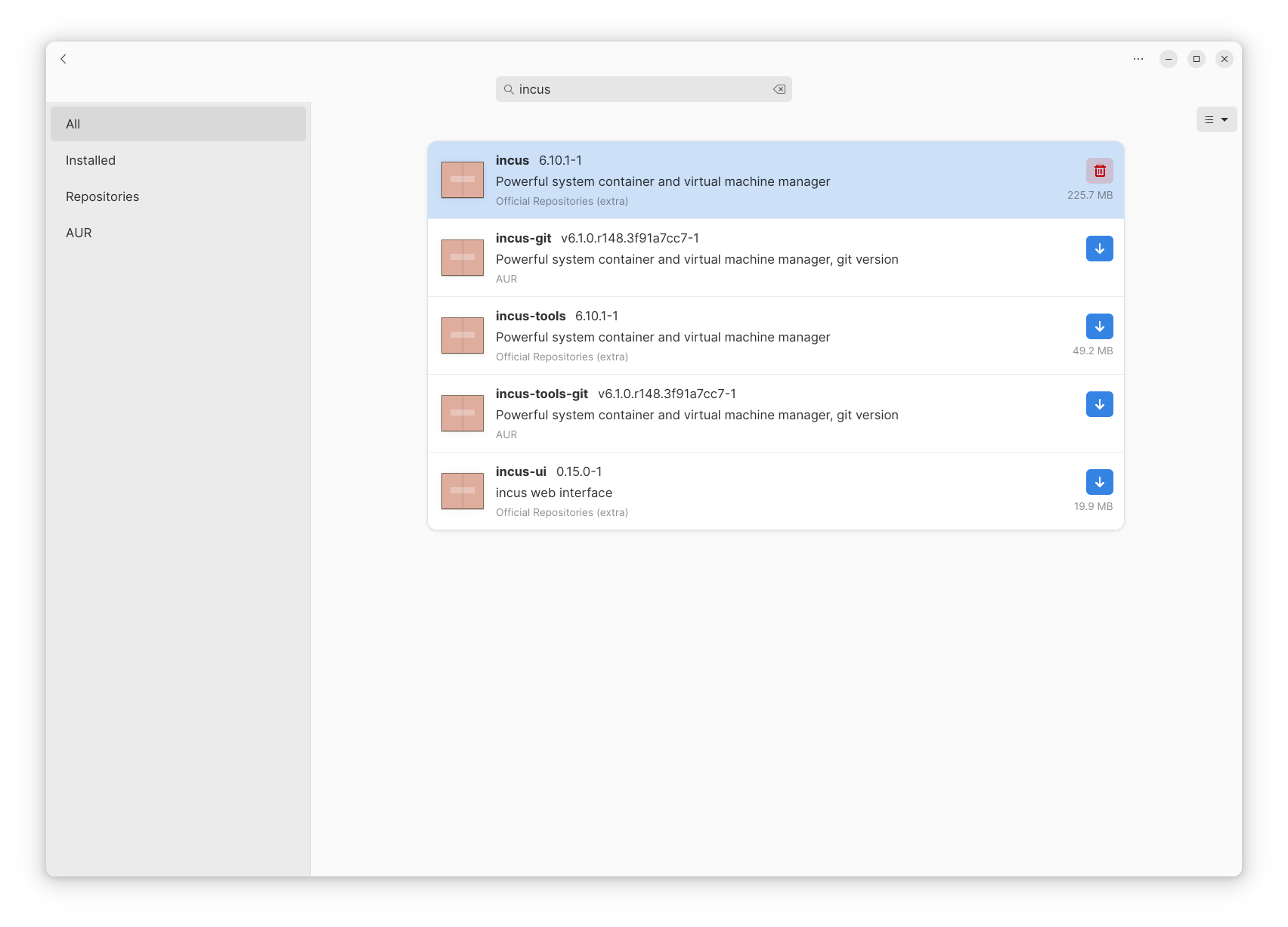
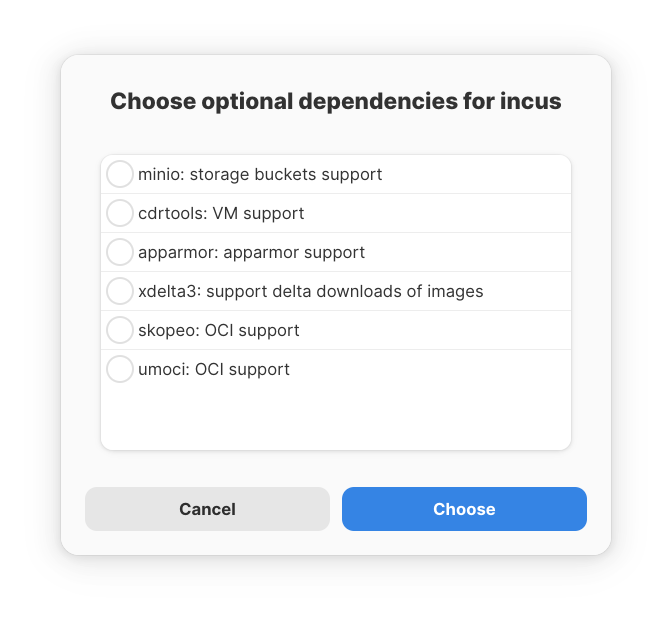
When prompted for optional dependencies, leave the defaults selected (or select the dependencies as necessary). For setting up a local Kubernetes cluster, we do not need any of these:
Installation - Debian 13
Should be available from apt repository (Debian 13 onwards), so can install using:
sudo apt install incusPost-installation steps
The main components of incus are:
- The background service
- The command line client
incuswhich we will use for all interactions - The metadata store (and main repository if we chose to not create a storage location elsewhere) - this is typically in
/var/lib/incus - A bridged network that is used by the created containers/VMs - and -
- Storage pools that can be per project, per group etc. (typically there’s a
defaultpool created, but incus allows you to add/import existing pools as needed)
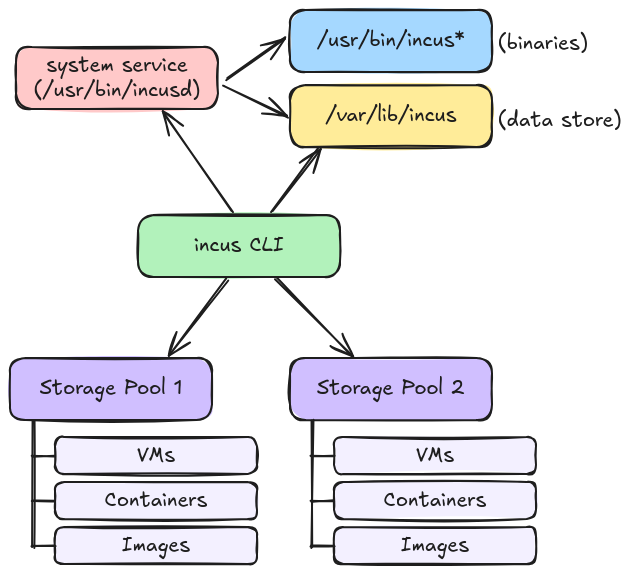
The metadata store is where incus stores information about the created containers, storage pools, snapshots, etc. If you uninstall incus, this folder stays back, and will need to be manually cleaned up (if you want to reset the installation, for example). Setting up the bridged network and the storage pools are done as part of the first time initialisation task.
Before launching any container with incus, we need to carry out the following post-installation steps:
- Enable the service
- Add user to admin group
- First-time initialisation
- Firewall update
- Storage initialisation (optional)
Enable the service
Once the installation has completed, first check the client using:
rs@blade:~$ incus version
Client version: 6.10.1
Server version: Unreachable
If the second line (server version) reports ‘Unreachable’, then the background service is not running/has not been enabled. The background service is not enabled by default (on Arch Linux). Enable the background service using:
systemctl status incus
systemctl start incus
systemctl enable incus
Now if you repeat the client version check, you should get the server version also printed:
rs@blade:~$ incus version
Client version: 6.10.1
Server version: 6.10.1
Add user to admin group
Before you can run admin commands with incus, you will need to add your user to the incus admin group:
sudo usermod -aG incus-admin [YOUR_USERNAME]Edit /etc/subuid and /etc/subgid (sudo nvim /etc/subuid or sudo nvim /etc/subgid), add the following line to the end:
root:1000000:1000000000Newer versions of incus need the above line - otherwise you will receive the following error message when trying to launch a container: Error: Failed instance creation: Failed to run: /usr/bin/incusd forkstart ...conf: exit status 1
Logout, login for the permissions to take effect.
First-time initialisation
Initialise incus using: incus admin init, when prompted, answer the following questions:
rs@blade:~$ incus admin init
Would you like to use clustering? (yes/no) [default=no]:
Do you want to configure a new storage pool? (yes/no) [default=yes]: no
Would you like to create a new local network bridge? (yes/no) [default=yes]:
What should the new bridge be called? [default=incusbr0]: nw-incus-bridge
What IPv4 address should be used? (CIDR subnet notation, “auto” or “none”) [default=auto]:
What IPv6 address should be used? (CIDR subnet notation, “auto” or “none”) [default=auto]:
Would you like the server to be available over the network? (yes/no) [default=no]:
Would you like stale cached images to be updated automatically? (yes/no) [default=yes]:
Would you like a YAML "init" preseed to be printed? (yes/no) [default=no]:
Firewall update
Incus’s setup page has clear instructions for firewall configuration: https://linuxcontainers.org/incus/docs/main/howto/network_bridge_firewalld/
To check if you are running firewalld or ufw:
systemctl status firewalld
systemctl status ufw
(Only one of the above would typically succeed.)
Once confirmed, if using firewalld, use the below commands to add the network bridge to the trusted zone:
sudo firewall-cmd --zone=trusted --change-interface=[NW_BRIDGE_NAME] --permanent
sudo firewall-cmd --reload
If using ufw, use the below commands instead:
sudo ufw allow in on [NW_BRIDGE_NAME]
sudo ufw route allow in on [NW_BRIDGE_NAME]
sudo ufw route allow out on [NW_BRIDGE_NAME]
Apart from the above, incus ends up enabling its own firewall for IPV4 by default. To disable this, use:
incus network set [NW_BRIDGE_NAME] ipv6.firewall false
incus network set [NW_BRIDGE_NAME] ipv4.firewall false
Storage initialisation
If you are content with storing incus containers/VMs in its own metadata folder, you can skip this section and move to the Create/Run VMs section below. If you prefer fine grained control (say, different storage folders for different contexts, etc), use the below commands to add/configure storage pools.
Create a storage pool:
incus storage create [POOL_NAME] dir source=/nexus/developer/incus-root/[POOL_NAME]3. Basic Incus Usage
Given below are the most common commands you will need to use Incus.
Create/run VMs
Incus requires an image name to launch a VM/container. Incus comes configured with a default remote image repository from linuxcontainers.org. Create, run new container machines with:
incus launch images:ubuntu/noble [CONTAINER_NAME] --storage=[POOL_NAME]To list local running containers/VMs:
rs@blade:~$ incus list
+----------+---------+------+------+-----------+-----------+
|   NAME   |  STATE  | IPV4 | IPV6 |   TYPE    | SNAPSHOTS |
+----------+---------+------+------+-----------+-----------+
| c-inc-a1 | STOPPED |      |      | CONTAINER | 0         |
+----------+---------+------+------+-----------+-----------+
| c-inc-a2 | STOPPED |      |      | CONTAINER | 0         |
+----------+---------+------+------+-----------+-----------+
| c-inc-s1 | STOPPED |      |      | CONTAINER | 2         |
+----------+---------+------+------+-----------+-----------+
| c-k8s-lb | STOPPED |      |      | CONTAINER | 1         |
+----------+---------+------+------+-----------+-----------+
The actual list output on your machine might have a different set - the output above is just a sample.
To stop a running container/VM:
incus stop [CONTAINER_NAME]Common commands
To get into a shell on a running container/VM:
incus exec [CONTAINER_NAME] /bin/bashTo copy a file to a container/VM:
incus file push [LOCAL_FILE_PATH] [CONTAINER_NAME]/[REMOTE_PATH]Example:
incus file push /nexus/developer/archives/k3s-install.sh c-inc-test/usr/bin/k3s-install.shTo create a snapshot:
incus snapshot create [CONTAINER_NAME] [SNAPSHOT_NAME]
incus info [CONTAINER_NAME] #should show the snapshot
To create a copy of an existing container/snapshot as another:
incus copy [BASE_CONTAINER]/[SNAPSHOT_NAME] [NEW_CONTAINER] --storage [TARGET_POOL]To remove the default storage location (needed only if you created a default storage profile in the initialisation step):
incus profile device remove default root #if we created a default storage profile in the above step
incus storage delete default #if we created a default storage profile in the above step
If you want a newly created storage pool to become the default storage location:
incus profile device add default root disk path=/ pool=[POOL_NAME](Replace [POOL_NAME] with your choice of name for the pool. This is needed only if you dont want to specify storage manually each time.)
If you already have storage pools created from before that you would prefer to import, use:
incus admin recoverEnter the name of the pool created before (name needs to match!), backend option as dir, select the path as /nexus/developer/incus-root/[POOL_NAME], all machines will get imported assuming names, paths match.
Sample output/interaction for importing an existing set of VMs:
rs@blade:~$ incus admin recover
This server currently has the following storage pools:
 - pool-default (backend="dir", source="/nexus/developer/incus-root/pool-default")
Would you like to recover another storage pool? (yes/no) [default=no]: yes
Name of the storage pool: pool-incubator
Name of the storage backend (dir, lvm, lvmcluster, btrfs): dir
Source of the storage pool (block device, volume group, dataset, path, ... as applicable): /nexus/developer/incus-root/pool-incubator
Additional storage pool configuration property (KEY=VALUE, empty when done):
Would you like to recover another storage pool? (yes/no) [default=no]:
The recovery process will be scanning the following storage pools:
 - EXISTING: "pool-default" (backend="dir", source="/nexus/developer/incus-root/pool-default")
 - NEW: "pool-incubator" (backend="dir", source="/nexus/developer/incus-root/pool-incubator")
Would you like to continue with scanning for lost volumes? (yes/no) [default=yes]: yes
Scanning for unknown volumes...
The following unknown storage pools have been found:
 - Storage pool "pool-incubator" of type "dir"
The following unknown volumes have been found:
 - Container "c-inc-a1" on pool "pool-incubator" in project "default" (includes 0 snapshots)
 - Container "c-inc-a2" on pool "pool-incubator" in project "default" (includes 0 snapshots)
 - Container "c-inc-s1" on pool "pool-incubator" in project "default" (includes 2 snapshots)
Would you like those to be recovered? (yes/no) [default=no]: yes
Starting recovery...
rs@blade:~$
If you need to edit the profile, use:
incus profile edit defaultTo list available images in the remote repository, use:
incus image list images:If re-importing a K8S enabled node (where the IP address is stored in the VM), to assign the SAME (older) IP back to the machine, use:
incus config device override [INSTANCE_NAME] eth0 ipv4.address=[TARGET_IP_ADDRESS]or edit the file /var/lib/incus/networks/nw-incus-bridge/dnsmasq.hosts/[INSTANCE_NAME].eth0 to contain the IP (this file is used by Incus’s dnsmasq to assign IP addresses):
sudo cat /var/lib/incus/networks/nw-incus-bridge/dnsmasq.hosts/[INSTANCE_NAME].eth0
[INSTANCE_MAC],[TARGET_IP_ADDRESS],[INSTANCE_NAME]  # eg. 00:AA:22:BB:44:CC,10.52.21.11,c-inc-test
Incus-Docker conflict
If you have docker also installed on the same machine as incus, firewall rules might prevent incus containers from accessing the internet. If you observe this (say apt-get update from a container fails), then update iptables to allow requests to flow from the bridged network to outside (on the host):
sudo iptables -I DOCKER-USER -i [NW_BRIDGE_NAME] -o [WLAN_NAME] -j ACCEPT
sudo iptables -I DOCKER-USER -o [NW_BRIDGE_NAME] -j ACCEPT
(To find the wireless interface name, use ip addr on the host)
This is to prevent the docker default firewall rules from preventing outgoing calls from the container machines [https://linuxcontainers.org/lxd/docs/master/howto/network_bridge_firewalld/#prevent-issues-with-lxd-and-docker].
This also enables inter-container communication over IPV4, so is recommended to execute the above if you notice that instances are not able to talk to/ping each other. (The above is needed typically if running on Debian - on EndeavourOS (Arch), I did not need to run the above command - nodes were able to connect externally and to one another.)
The above rules will get reset when the machine is restarted, so to persist the above:
sudo apt install iptables-persistentRestart the containers.
(you will be asked whether to save the rules, select Yes)
Hold package versions
Hold the kernel package versions:
- Run
uname -a, note down version - Open Synaptic
- Search for linux-generic, linux-modules-VERSION-generic, linux-modules-extra-VERSION-generic
- Select ‘Package’ from the menu, mark ‘lock version’
(The above is needed typically if running on Debian.)
You now have a cool, lightweight, non-ephermeral virtualisation layer that you can shape based on your needs.
4. Install K3S
Once Incus is setup/configured, K3S installation is a fairly straightforward task. The articles on the Rancher team’s K3S site https://docs.k3s.io/ - both the ‘Quickstart’ and the ‘Airgap Install’ sections - are more than sufficient, the k3s-install scripts are designed to allow us to download/setup the K3S server with a single command - the install script downloads the needed components as part of the installation.
Since we’re installing K3S on Incus, however, and Incus provides us with the ability to create snapshots of machines (and create new instances based of the created snapshots), the approach we’re following here first creates a base machine image with common utilities and the K3S components and then sets up the control plane and agent nodes. For the commands below, I’ll be using the name c-localk3s-s1 as a sample - syntax I’m using is c = cluster, localk3s = name of the cluster, and s1 = control-plane-node1. For the agents I’ll use the name c-localk3s-a1/a2..a'n'. Please feel free to customise these names to your needs. I’ll be using the pool-default storage pool for all the commands below.
Base machine image
Lets first start by bootstrapping a base container - we will be using Ubuntu/Noble as the image for the VMs. Ubuntu seems to work the best for K3S installations (and full K8S installations for that matter), Debian/Alpine needed a few other steps to configure network, AppArmor etc. whereas Ubuntu works out-of-the-box.
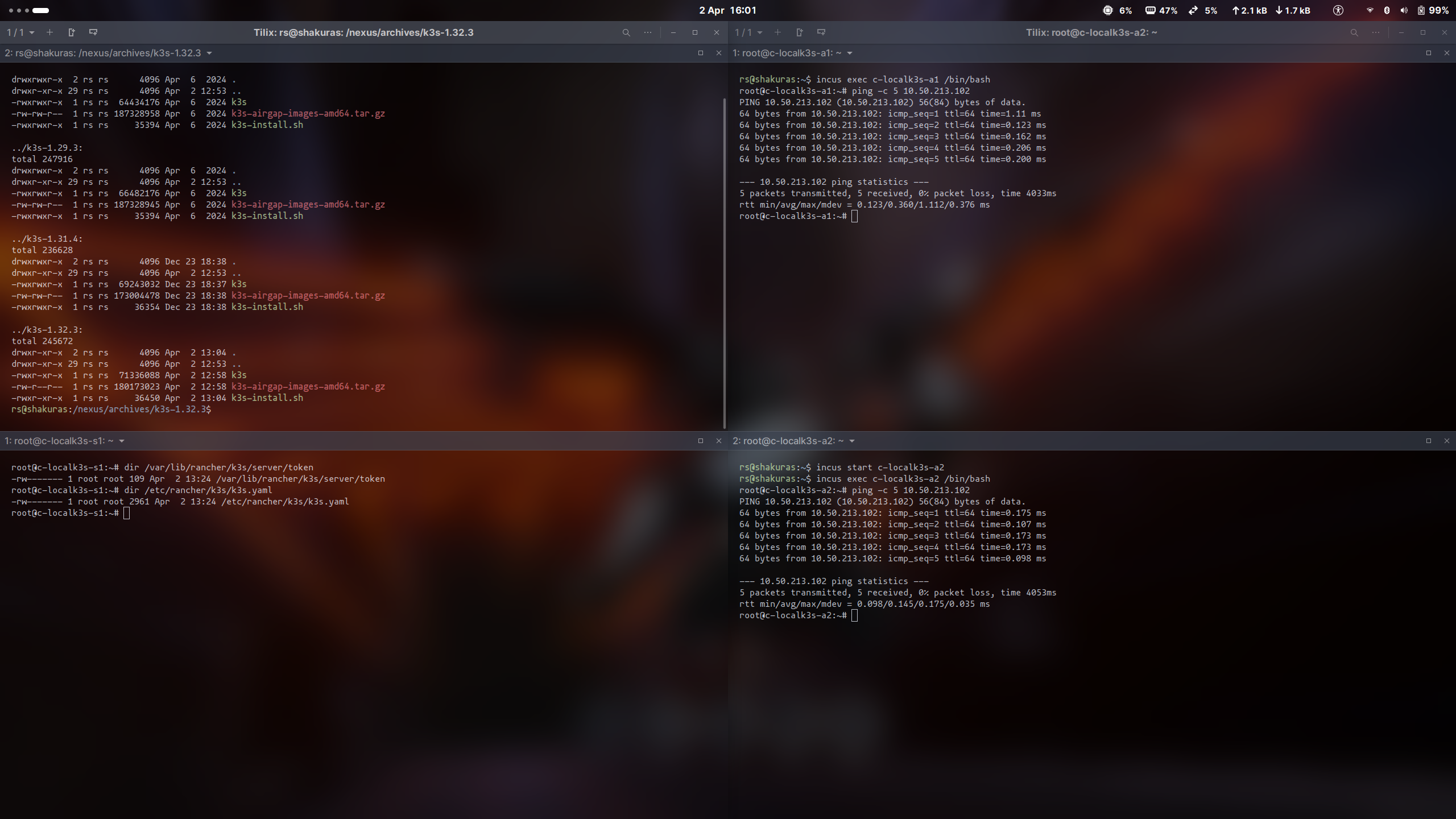
For this section, commands to be executed switch between the host, the control-plane node and the agent nodes, so it might help to get 4 Tilix sessions opened. On my machine, I use two Terminal windows with 2 sessions each - top-left is the host shell, bottom-left is the control plane, and the right window has the agent nodes.
# On the host
rs@blade:~$ incus launch images:ubuntu/noble c-localk3s-s1 --storage=pool-default
Launching c-localk3s-s1

rs@blade:~$ incus list
+---------------+---------+-----------------------+-----------------------------------------------+-----------+-----------+
|     NAME      |  STATE  |         IPV4          |                     IPV6                      |   TYPE    | SNAPSHOTS |
+---------------+---------+-----------------------+-----------------------------------------------+-----------+-----------+
| c-localk3s-s1 | RUNNING | 10.50.213.102 (eth0)  | fd42:ca17:c0a4:eba6:216:3eff:fef8:4bd6 (eth0) | CONTAINER | 0         |
+---------------+---------+-----------------------+-----------------------------------------------+-----------+-----------+
The output on your machine might differ - the IP address of the machine gets assigned by Incus as part of the networking setup stage. Note down this IP address - we will use/refer to it in subsequent steps as the [CLUSTER_CONTROLPLANE_IP]. As long as the STATE shows RUNNING, and the VM has been assigned an IPV4 address, we should be good to continue.
Stop the VM with incus stop c-localk3s-s1, then edit the config for the machines using incus config edit c-localk3s-s1, add the below lines under the config and devices section:
config:
  ...
  limits.cpu: "2"
  limits.memory: 4GB
  limits.memory.swap: "false"
  linux.kernel_modules: overlay,nf_nat,ip_tables,ip6_tables,netlink_diag,br_netfilter,xt_conntrack,nf_conntrack,ip_vs,vxlan
  raw.incus: |-
    incus.apparmor.profile=unconfined
    incus.cap.drop=
    incus.cgroup2.devices.allow=c 10:200 rwm
    incus.mount.auto=proc:rw sys:rw
    incus.mount.entry=/dev/kmsg dev/kmsg none defaults,bind,create=file
  security.nesting: "true"
  security.privileged: "true"
devices:
  ...
  kmsg:
    path: /dev/kmsg
    source: /dev/kmsg
    type: unix-char
Start the machine using incus start c-localk3s-s1, then enter a shell on the machine with incus exec c-localk3s-s1 /bin/bash.
The following commands are to be run on the machine:
# To be run on the VM
apt-get update
apt install -y wget curl vim ca-certificates
mkdir -p /var/lib/rancher/k3s/agent/images/ # Base directory that we will upload the airgap-install images to
Add the following lines to the end of the .bashrc file (on the VM: vim ~/.bashrc) - OPTIONAL:
alias cls='clear'
alias dir='ls -la --color'

unset HISTFILE # Does not save history
Exit back to the local machine with exit.
As the last part of the preparation step, we will need to download 3 files for the installation from the K3S site -
- The install script (
k3s-install.sh) - The K3S binary (
k3s) - and - - The airgap images binaries (
k3s-airgap-images-amd64.tar.gz)
Why not use the single line installation method?
- The single command install always installs the most recent version - we may want to install a specific version and return to the same version later.
- As mentioned earlier, we also do not want to download the images thrice - once for each node, we will be using the Incus snapshot feature for this task.
As an example, I have the restore files for the following 3 versions on my machine:
rs@blade:~$ dir /nexus/archives/k3s*
/nexus/archives/k3s-1.27.12:
total 245916
drwxrwxr-x  2 rs rs      4096 Apr  6  2024 .
drwxr-xr-x 28 rs rs      4096 Feb 23 19:13 ..
-rwxrwxr-x  1 rs rs  64434176 Apr  6  2024 k3s
-rw-rw-r--  1 rs rs 187328958 Apr  6  2024 k3s-airgap-images-amd64.tar.gz
-rwxrwxr-x  1 rs rs     35394 Apr  6  2024 k3s-install.sh

/nexus/archives/k3s-1.29.3:
total 247916
drwxrwxr-x  2 rs rs      4096 Apr  6  2024 .
drwxr-xr-x 28 rs rs      4096 Feb 23 19:13 ..
-rwxrwxr-x  1 rs rs  66482176 Apr  6  2024 k3s
-rw-rw-r--  1 rs rs 187328945 Apr  6  2024 k3s-airgap-images-amd64.tar.gz
-rwxrwxr-x  1 rs rs     35394 Apr  6  2024 k3s-install.sh

/nexus/archives/k3s-1.31.4:
total 236628
drwxrwxr-x  2 rs rs      4096 Dec 23 18:38 .
drwxr-xr-x 28 rs rs      4096 Feb 23 19:13 ..
-rwxrwxr-x  1 rs rs  69243032 Dec 23 18:37 k3s
-rw-rw-r--  1 rs rs 173004478 Dec 23 18:38 k3s-airgap-images-amd64.tar.gz
-rwxrwxr-x  1 rs rs     36354 Dec 23 18:38 k3s-install.sh
Create a local folder (say, k3s-1.32.3 - the most recent version as of the date of this article), and download the files from these URLs into this folder:
mkdir k3s-1.32.3 && cd k3s-1.32.3Download URLs:
- The install script (
k3s-install.sh): https://get.k3s.io/ - save the raw contents ask3s-install.sh - The K3S binary (
k3s): https://github.com/k3s-io/k3s/releases/download/v1.32.3%2Bk3s1/k3s - The airgap images binaries (
k3s-airgap-images-amd64.tar.gz): https://github.com/k3s-io/k3s/releases/download/v1.32.3%2Bk3s1/k3s-airgap-images-amd64.tar.gz
The K3S binary and the airgap-images files are from the releases page located here: https://github.com/k3s-io/k3s/releases.
The installation section on the K3S docs page is fairly detailed, for all other customisations/changes, please refer to the docs site.
Add the executable flag to the install script and the k3s binary:
chmod +x ./k3s ./k3s-install.shCopy the needed files to the machines:
# On the host
incus file push ./k3s c-localk3s-s1/usr/local/bin/k3s
incus file push ./k3s-install.sh c-localk3s-s1/root/k3s-install.sh
incus file push ./k3s-airgap-images-amd64.tar.gz c-localk3s-s1/var/lib/rancher/k3s/agent/images/k3s-airgap-images-amd64.tar.gz
Create a snapshot (with the copied files) using:
# On the host
incus snapshot create c-localk3s-s1 base-system
Displaying information about the VM should now show the snapshot:
# On the host
incus info c-localk3s-s1
Now you can create any number of copied instances from the snapshot - all of them will ‘inherit’ the installed packages, base settings (.bashrc), and the K3S install files:
# On the host
incus copy c-localk3s-s1/base-system c-localk3s-a1 --storage=pool-default
incus copy c-localk3s-s1/base-system c-localk3s-a2 --storage=pool-default
You should now have the following 3 VMs on your machine:
rs@blade:/nexus/archives/k3s-1.32.3$ incus list
+---------------+---------+-----------------------+-----------------------------------------------+-----------+-----------+
|     NAME      |  STATE  |         IPV4          |                     IPV6                      |   TYPE    | SNAPSHOTS |
+---------------+---------+-----------------------+-----------------------------------------------+-----------+-----------+
| c-localk3s-a1 | STOPPED |                       |                                               | CONTAINER | 0         |
+---------------+---------+-----------------------+-----------------------------------------------+-----------+-----------+
| c-localk3s-a2 | STOPPED |                       |                                               | CONTAINER | 0         |
+---------------+---------+-----------------------+-----------------------------------------------+-----------+-----------+
| c-localk3s-s1 | RUNNING | 10.50.213.102 (eth0)  | fd42:ca17:c0a4:eba6:216:3eff:fef8:4bd6 (eth0) | CONTAINER | 1         |
+---------------+---------+-----------------------+-----------------------------------------------+-----------+-----------+
Creating a copy will NOT create a baseline snapshot on the copied instance, so lets create the baseline snapshots for the agent nodes as well. This is useful if we need to rollback to this state if we make a mistake during installation, and we want to reset back to the baseline.
# On the host
incus snapshot create c-localk3s-a1 base-system
incus snapshot create c-localk3s-a2 base-system
Before starting the installation, verify that an agent node is able to connect to the control plane node:
# On the host
incus start c-localk3s-a1
incus exec c-localk3s-a1 /bin/bash

# On the VM (c-localk3s-a1)
ping -c 5 [CONTROLPLANE_NODEIP]
Use the IPV4 address of c-localk3s-s1 from the incus list command as the value for [CONTROLPLANE_NODEIP], and note this address down - we will be using this in subsequent commands below.
We’re now ready to begin the installation of K3S.
Setup the control plane
Once the base image is ready, installing K3S control plane is a one-command setup on the VM. Open a shell to VM with incus exec c-localk3s-s1 /bin/bash and run:
INSTALL_K3S_SKIP_DOWNLOAD=true ./k3s-install.sh --bind-address=[CONTROLPLANE_NODEIP] --advertise-address=[CONTROLPLANE_NODEIP] --node-external-ip=[CONTROLPLANE_NODEIP]- The above command runs the
k3s-install.shscript which we copied to the root user’s home folder on the VM. - This script looks for the airgap images and the K3S binary in specific locations - we have already copied these files into these locations.
- Use the IPV4 value of the node from the
incus listcommand as the value for[CONTROLPLANE_NODEIP]. - The install script itself is not needed after the installation, and can be removed with
rm k3s-install.shonce the installation completes.
Sample output:
rs@blade:/nexus/archives/k3s-1.32.3$ incus exec c-localk3s-s1 /bin/bash
root@c-localk3s-s1:~# INSTALL_K3S_SKIP_DOWNLOAD=true ./k3s-install.sh --bind-address=10.50.213.102 --advertise-address=10.50.213.102 --node-external-ip=10.50.213.102
[INFO]  Skipping k3s download and verify
[INFO]  Skipping installation of SELinux RPM
[INFO]  Creating /usr/local/bin/kubectl symlink to k3s
[INFO]  Creating /usr/local/bin/crictl symlink to k3s
[INFO]  Creating /usr/local/bin/ctr symlink to k3s
[INFO]  Creating killall script /usr/local/bin/k3s-killall.sh
[INFO]  Creating uninstall script /usr/local/bin/k3s-uninstall.sh
[INFO]  env: Creating environment file /etc/systemd/system/k3s.service.env
[INFO]  systemd: Creating service file /etc/systemd/system/k3s.service
[INFO]  systemd: Enabling k3s unit
Created symlink /etc/systemd/system/multi-user.target.wants/k3s.service → /etc/systemd/system/k3s.service.
[INFO]  Host iptables-save/iptables-restore tools not found
[INFO]  Host ip6tables-save/ip6tables-restore tools not found
[INFO]  systemd: Starting k3s
root@c-localk3s-s1:~# journalctl -xeu k3s
[Press q to exit the journalctl output]
You can verify that installation finished by either using the journalctl command above, or by using:
# On the host
rs@blade:/nexus/archives/k3s-1.32.3$ incus list
+---------------+---------+-----------------------+-----------------------------------------------+-----------+-----------+
|     NAME      |  STATE  |         IPV4          |                     IPV6                      |   TYPE    | SNAPSHOTS |
+---------------+---------+-----------------------+-----------------------------------------------+-----------+-----------+
| c-localk3s-a1 | RUNNING | 10.50.213.232 (eth0)  | fd42:ca17:c0a4:eba6:216:3eff:fe54:7f6e (eth0) | CONTAINER | 1         |
+---------------+---------+-----------------------+-----------------------------------------------+-----------+-----------+
| c-localk3s-a2 | STOPPED |                       |                                               | CONTAINER | 1         |
+---------------+---------+-----------------------+-----------------------------------------------+-----------+-----------+
| c-localk3s-s1 | RUNNING | 10.50.213.102 (eth0)  | fd42:ca17:c0a4:eba6:216:3eff:fef8:4bd6 (eth0) | CONTAINER | 1         |
|               |         | 10.42.0.1 (cni0)      |                                               |           |           |
|               |         | 10.42.0.0 (flannel.1) |                                               |           |           |
+---------------+---------+-----------------------+-----------------------------------------------+-----------+-----------+
If K3S initialized successfully, the control plane node will end up with 3 IPs (1 from eth0, 1 from CNI and 1 from flannel).
You can also check the cluster nodes list by running the following on the control plane node:
root@c-localk3s-s1:~# kubectl get nodes
NAME            STATUS   ROLES                  AGE    VERSION
c-localk3s-s1   Ready    control-plane,master   110m   v1.32.3+k3s1
Successful installation will also create the following two files on the control plane node: /var/lib/rancher/k3s/server/token and /etc/rancher/k3s/k3s.yaml. Verify that these exist on the control plane node - we will use them for setting up the agents and the kubectl CLI on the host.
root@c-localk3s-s1:~# dir /var/lib/rancher/k3s/server/token
-rw------- 1 root root 109 Apr  2 13:24 /var/lib/rancher/k3s/server/token

root@c-localk3s-s1:~# dir /etc/rancher/k3s/k3s.yaml
-rw------- 1 root root 2961 Apr  2 13:24 /etc/rancher/k3s/k3s.yaml
If you are setting up a HA instance, you will need two more steps - a load balancer, and a repeat of the control plane setup on the second and third nodes - we will get to these in a later post, this article is for setting up a non-HA cluster.
Setup the agent nodes
Setting up the agent node is also a single command - this command however requires two values - the IP of the control plane node, and the token to authenticate the agent with the control plane node.
To get the token from the control plane node:
# On the control plane node
root@c-localk3s-s1:~# cat /var/lib/rancher/k3s/server/token
K109c14ff73366132eea341555d646bf2f32d1953ce4f7ab712ef1a0b3581014e0f::server:9bdf14816733e21b443fe0e49ded8b9f
The value of the token is the part of the above string after the last colon.
Now install the K3S agent by running the following command:
# On the agent node(s)
INSTALL_K3S_SKIP_DOWNLOAD=true K3S_URL=https://[CONTROLPLANE_NODEIP]:6443 K3S_TOKEN=[ACCESS_TOKEN] ./k3s-install.sh
(Replace the values of [CONTROLPLANE_NODEIP] and [ACCESS_TOKEN] with the values from your machine.)
Sample output:
root@c-localk3s-a1:~# INSTALL_K3S_SKIP_DOWNLOAD=true K3S_URL=https://10.50.213.102:6443 K3S_TOKEN=9bdf14816733e21b443fe0e49ded8b9f ./k3s-install.sh
[INFO]  Skipping k3s download and verify
[INFO]  Skipping installation of SELinux RPM
[INFO]  Creating /usr/local/bin/kubectl symlink to k3s
[INFO]  Creating /usr/local/bin/crictl symlink to k3s
[INFO]  Creating /usr/local/bin/ctr symlink to k3s
[INFO]  Creating killall script /usr/local/bin/k3s-killall.sh
[INFO]  Creating uninstall script /usr/local/bin/k3s-agent-uninstall.sh
[INFO]  env: Creating environment file /etc/systemd/system/k3s-agent.service.env
[INFO]  systemd: Creating service file /etc/systemd/system/k3s-agent.service
[INFO]  systemd: Enabling k3s-agent unit
Created symlink /etc/systemd/system/multi-user.target.wants/k3s-agent.service → /etc/systemd/system/k3s-agent.service.
[INFO]  Host iptables-save/iptables-restore tools not found
[INFO]  Host ip6tables-save/ip6tables-restore tools not found
[INFO]  systemd: Starting k3s-agent
root@c-localk3s-a1:~#
You can now check the output of kubectl on the control plane to verify that the agent has registed correctly with the cluster:
# On the control plane node
root@c-localk3s-s1:~# kubectl get nodes
NAME            STATUS   ROLES                  AGE    VERSION
c-localk3s-a1   Ready    <none>                 11s    v1.32.3+k3s1
c-localk3s-s1   Ready    control-plane,master   115m   v1.32.3+k3s1
Repeat the step once for each agent.
Running incus list on the host should now show all the cluster nodes with K3S components with 3 IPs per node:
# On the host
rs@blade:/nexus/archives/k3s-1.32.3$ incus list
+---------------+---------+-----------------------+-----------------------------------------------+-----------+-----------+
|     NAME      |  STATE  |         IPV4          |                     IPV6                      |   TYPE    | SNAPSHOTS |
+---------------+---------+-----------------------+-----------------------------------------------+-----------+-----------+
| c-localk3s-a1 | RUNNING | 10.50.213.232 (eth0)  | fd42:ca17:c0a4:eba6:216:3eff:fe54:7f6e (eth0) | CONTAINER | 1         |
|               |         | 10.42.1.1 (cni0)      |                                               |           |           |
|               |         | 10.42.1.0 (flannel.1) |                                               |           |           |
+---------------+---------+-----------------------+-----------------------------------------------+-----------+-----------+
| c-localk3s-a2 | RUNNING | 10.50.213.189 (eth0)  | fd42:ca17:c0a4:eba6:216:3eff:fe1e:dcf7 (eth0) | CONTAINER | 1         |
|               |         | 10.42.2.1 (cni0)      |                                               |           |           |
|               |         | 10.42.2.0 (flannel.1) |                                               |           |           |
+---------------+---------+-----------------------+-----------------------------------------------+-----------+-----------+
| c-localk3s-s1 | RUNNING | 10.50.213.102 (eth0)  | fd42:ca17:c0a4:eba6:216:3eff:fef8:4bd6 (eth0) | CONTAINER | 1         |
|               |         | 10.42.0.1 (cni0)      |                                               |           |           |
|               |         | 10.42.0.0 (flannel.1) |                                               |           |           |
+---------------+---------+-----------------------+-----------------------------------------------+-----------+-----------+
Deployment taints
It is recommended to disable deployment scheduling/assignment from the control plane (leaving its focus as the controller for the cluster). This is done by:
# On the control plane node
root@c-localk3s-s1:~# kubectl taint nodes c-localk3s-s1 k3s-controlplane=true:NoSchedule
node/c-localk3s-s1 tainted
Download .kubeconfig
To connect kubectl on your local machine to the cluster we just created, we need the cluster access file (/etc/rancher/k3s/k3s.yaml on the control plane node) to be merged into the .kube/config file on your machine. To get this file:
# On the host
incus file pull c-localk3s-s1//etc/rancher/k3s/k3s.yaml ./kube-config
If your machine does NOT have existing connections to other clusters, then this file can be moved straight into the .kube folder:
# On the host
mkdir ~/.kube
mv ./kube-config ~/.kube/config
If your machine DOES have other clusters, you will need to merge the contents of this file with the existing .kube/config. Open both the files in an editor and copy paste the cluster, context, and user sections from the file on the control plane to the .kube/config file on the host.
**NOTE: On the control plane, the cluster, context and user names will be set to default. While pasting the contents of the kube-config file, you’ll need to ensure that the names of these sections are unique (context references/links the cluster and the user by name).
A sample file with two contexts is given below:
apiVersion: v1
clusters:
- cluster:
    certificate-authority-data: LS0tLS1CRUdJTiBDRVJUSUZJQ0FURS0tLS0tCk1JSUJkekNDQVIyZ0F3SUJBZ0lCQURBS0JnZ3Foa2pPUFFRREFqQWpNU0V3SHdZRFZRUUREQmhyTTNNdGMyVnkKZG1WeUxXTmhRREUyTnpRME1USXhNek13SGhjTk1qTXdNVEl5TVRneU9EVXpXaGNOTXpNd01URTVNVGd5T0RVegpXakFqTVNFd0h3WURWUVFEREJock0zTXRjMlZ5ZG1WeUxXTmhRREUyTnpRME1USXhNek13V1RBVEJnY3Foa2pPClBRSUJCZ2dxaGtqT1BRTUJCd05DQUFTeTNGYWVsVWNzQklqT2FVbHdESVhLOCsxbEh6anE4RmFUc2J6bjR3cHkKZm51alZ3VmtHR2tuOWlSYVFacWFiUjZMeERuZFdUdkxFOWZ0WWVQdnA4WldvMEl3UURBT0JnTlZIUThCQWY4RQpCQU1DQXFRd0R3WURWUjBUQVFIL0JBVXdBd0VCL3pBZEJnTlZIUTRFRmdRVUtXQmNOMVRXT1dWeWtPNndwQkoxCnVLbmJsaUl3Q2dZSUtvWkl6ajBFQXdJRFNBQXdSUUlnQStmMHVNekJSbmhyZkZaNnA0c3cyMDk2WEViZVlFSHoKcXdnUTlTSWxsY29DSVFENjAzT3NkeDBwR1p3dGlRWWFVM3c5Y1hZdWRaWDlkcmduZzRUdnJpNnA5Zz09Ci0tLS0tRU5EIENFUlRJRklDQVRFLS0tLS0K
    server: https://10.11.162.124:6443
  name: alysaril-local
- cluster:
    certificate-authority-data: LS0tLS1CRUdJTiBDRVJUSUZJQ0FURS0tLS0tCk1JSUJkekNDQVIyZ0F3SUJBZ0lCQURBS0JnZ3Foa2pPUFFRREFqQWpNU0V3SHdZRFZRUUREQmhyTTNNdGMyVnkKZG1WeUxXTmhRREUzTkRNMk1EQXlORGd3SGhjTk1qVXdOREF5TVRNeU5EQTRXaGNOTXpVd016TXhNVE15TkRBNApXakFqTVNFd0h3WURWUVFEREJock0zTXRjMlZ5ZG1WeUxXTmhRREUzTkRNMk1EQXlORGd3V1RBVEJnY3Foa2pPClBRSUJCZ2dxaGtqT1BRTUJCd05DQUFTdUhjRFFJZFByY3RLS3VMSzFSTUdoMi9RblhjNWFnZTMyZXJnaG10WU4KNkNmS3dqUUFwa3dPdGpFWG5UaGd5OE1OYU5KamUwQWl5NWg0VGhLVkVUNWpvMEl3UURBT0JnTlZIUThCQWY4RQpCQU1DQXFRd0R3WURWUjBUQVFIL0JBVXdBd0VCL3pBZEJnTlZIUTRFRmdRVUFGUGlWN3RwSVdITUVyWDBDY1E5Cmp5VnR1L1F3Q2dZSUtvWkl6ajBFQXdJRFNBQXdSUUlnUEExbGVKK2JBN0VyenZ3UXkwQkExM3ZVa0lzaFVFWjAKSmIvQVI5NjZrVllDSVFDNkJ5ZTBLSFh4WWZ2dDNrTFEyU1FRQXphT0poZER3K2V3MnJ1QzVZV1FEZz09Ci0tLS0tRU5EIENFUlRJRklDQVRFLS0tLS0K
    server: https://10.50.213.102:6443
  name: c-localk3s
contexts:
- context:
    cluster: alysaril-local
    user: alysaar-local
  name: alysaril-local
- context:
    cluster: c-localk3s
    user: c-localk3s-admin
  name: c-localk3s
current-context: c-local-k3s
kind: Config
preferences: {}
users:
- name: alysaar-local
  user:
    client-certificate-data: LS0tLS1CRUdJTiBDRVJUSUZJQ0FURS0tLS0tCk1JSUJrakNDQVRlZ0F3SUJBZ0lJQmhLWGg4MVZWazh3Q2dZSUtvWkl6ajBFQXdJd0l6RWhNQjhHQTFVRUF3d1kKYXpOekxXTnNhV1Z1ZEMxallVQXhOamMwTkRFeU1UTXpNQjRYRFRJek1ERXlNakU0TWpnMU0xb1hEVEkwTURFeQpNakU0TWpnMU0xb3dNREVYTUJVR0ExVUVDaE1PYzNsemRHVnRPbTFoYzNSbGNuTXhGVEFUQmdOVkJBTVRESE41CmMzUmxiVHBoWkcxcGJqQlpNQk1HQnlxR1NNNDlBZ0VHQ0NxR1NNNDlBd0VIQTBJQUJDUGt2eERNTm1oMkNYUkkKZ242bCtTdCt3Wi9qM0N3MS8xd09Ob0plSkhnclRIeUlneUhvNHBtNkt0NU9PRU9wbGpSL1RDOUdaUkpyTDZDZwpGZFV4L3VHalNEQkdNQTRHQTFVZER3RUIvd1FFQXdJRm9EQVRCZ05WSFNVRUREQUtCZ2dyQmdFRkJRY0RBakFmCkJnTlZIU01FR0RBV2dCUUpQUGFrUzJjNTlad2Yvbk85a2FZSjE2TTU1REFLQmdncWhrak9QUVFEQWdOSkFEQkcKQWlFQTNIN0EybWNZUUsyNVovdVZ0TWFFSnFHbDFDVjVFOTZJc29tb29aNW1tajRDSVFDQkZjNEd2dXNkSkYwdwpWdldrSDdTUWx2ODg4Y1M4aWYxTG90ck9sNzNTU0E9PQotLS0tLUVORCBDRVJUSUZJQ0FURS0tLS0tCi0tLS0tQkVHSU4gQ0VSVElGSUNBVEUtLS0tLQpNSUlCZHpDQ0FSMmdBd0lCQWdJQkFEQUtCZ2dxaGtqT1BRUURBakFqTVNFd0h3WURWUVFEREJock0zTXRZMnhwClpXNTBMV05oUURFMk56UTBNVEl4TXpNd0hoY05Nak13TVRJeU1UZ3lPRFV6V2hjTk16TXdNVEU1TVRneU9EVXoKV2pBak1TRXdId1lEVlFRRERCaHJNM010WTJ4cFpXNTBMV05oUURFMk56UTBNVEl4TXpNd1dUQVRCZ2NxaGtqTwpQUUlCQmdncWhrak9QUU1CQndOQ0FBVG14U2tKVk8xL0RBL1VndXBGekZxTkMzUGJ1TUh3dncyZVl3Qi9yNDZ2ClBsTzQ1UjF1TE9zVGlLRmJrN2pKTmdRRXA2UFhMcHVKUlFJUUlEZlc4eEZ5bzBJd1FEQU9CZ05WSFE4QkFmOEUKQkFNQ0FxUXdEd1lEVlIwVEFRSC9CQVV3QXdFQi96QWRCZ05WSFE0RUZnUVVDVHoycEV0bk9mV2NILzV6dlpHbQpDZGVqT2VRd0NnWUlLb1pJemowRUF3SURTQUF3UlFJaEFNeUt2a1ZtcWdGWTNxeTFOeWpLaEovUWNiUks3aVpFCjNoUnlaY0V2MHBlaUFpQVhRV3RwVXJINkdraVhEQVpmZXp6RUYveUd0NnZ6QVRLNlZzdnVacGF3cUE9PQotLS0tLUVORCBDRVJUSUZJQ0FURS0tLS0tCg==
    client-key-data: LS0tLS1CRUdJTiBFQyBQUklWQVRFIEtFWS0tLS0tCk1IY0NBUUVFSUJTUkptUFE1ZWh3STl1OGt3MHVjWkVPdVZINk5rSDBvOXhESUpQamZEcjBvQW9HQ0NxR1NNNDkKQXdFSG9VUURRZ0FFSStTL0VNdzJhSFlKZEVpQ2ZxWDVLMzdCbitQY0xEWC9YQTQyZ2w0a2VDdE1mSWlESWVqaQptYm9xM2s0NFE2bVdOSDlNTDBabEVtc3ZvS0FWMVRIKzRRPT0KLS0tLS1FTkQgRUMgUFJJVkFURSBLRVktLS0tLQo=
- name: c-localk3s-admin
  user:
    client-certificate-data: LS0tLS1CRUdJTiBDRVJUSUZJQ0FURS0tLS0tCk1JSUJrVENDQVRlZ0F3SUJBZ0lJTmI5Z3ppZyt2M293Q2dZSUtvWkl6ajBFQXdJd0l6RWhNQjhHQTFVRUF3d1kKYXpOekxXTnNhV1Z1ZEMxallVQXhOelF6TmpBd01qUTRNQjRYRFRJMU1EUXdNakV6TWpRd09Gb1hEVEkyTURRdwpNakV6TWpRd09Gb3dNREVYTUJVR0ExVUVDaE1PYzNsemRHVnRPbTFoYzNSbGNuTXhGVEFUQmdOVkJBTVRESE41CmMzUmxiVHBoWkcxcGJqQlpNQk1HQnlxR1NNNDlBZ0VHQ0NxR1NNNDlBd0VIQTBJQUJFeUVCTm1MUmFuMmhpdUwKQTRmSTNRdTF1eGRIekxKMDlyZHVjT2FRTU1DVkJpQ0lqcmxDUENVSUJLYzFHTHpmcnk1TmlTVGV2NU9GRDhuSAo2Rzl3T0h1alNEQkdNQTRHQTFVZER3RUIvd1FFQXdJRm9EQVRCZ05WSFNVRUREQUtCZ2dyQmdFRkJRY0RBakFmCkJnTlZIU01FR0RBV2dCUlVHWGtYWkVlMUlCc1prelZ0WXBEV04yeHRRakFLQmdncWhrak9QUVFEQWdOSUFEQkYKQWlFQTMrUFRRdmhkcXo2U3NpZVoxaHB1TnNodmUvcnNnbTZUcEhKWnVTVUhLbVFDSURoV25aZHBPNXlkR21RYwowNzNXb0lZWkIwTUJ3ZE1TU055UDY5d1VvM2VqCi0tLS0tRU5EIENFUlRJRklDQVRFLS0tLS0KLS0tLS1CRUdJTiBDRVJUSUZJQ0FURS0tLS0tCk1JSUJkakNDQVIyZ0F3SUJBZ0lCQURBS0JnZ3Foa2pPUFFRREFqQWpNU0V3SHdZRFZRUUREQmhyTTNNdFkyeHAKWlc1MExXTmhRREUzTkRNMk1EQXlORGd3SGhjTk1qVXdOREF5TVRNeU5EQTRXaGNOTXpVd016TXhNVE15TkRBNApXakFqTVNFd0h3WURWUVFEREJock0zTXRZMnhwWlc1MExXTmhRREUzTkRNMk1EQXlORGd3V1RBVEJnY3Foa2pPClBRSUJCZ2dxaGtqT1BRTUJCd05DQUFSSGRQUStIaE9WK0creDI2MDZRKzIrZitVcjBCT1lZVmdJRFJ5cEpWeVIKVzFCczhPYlhTSEc0QW9nS1RJeUZ2VzdHL0hOZk5EQW1nZU1sUEkxKzlGR0ZvMEl3UURBT0JnTlZIUThCQWY4RQpCQU1DQXFRd0R3WURWUjBUQVFIL0JBVXdBd0VCL3pBZEJnTlZIUTRFRmdRVVZCbDVGMlJIdFNBYkdaTTFiV0tRCjFqZHNiVUl3Q2dZSUtvWkl6ajBFQXdJRFJ3QXdSQUlnUHk0M1htc3I2bU9yMjVMdlRSS1RLK01BTmx0cG93a3YKWDZZMG4xTzNYNm9DSUN6TjkwYkIxa2lOVzJqMkRvY0VjZi93K2JvL3ZDOW0xK2lUcm9uckZYVGMKLS0tLS1FTkQgQ0VSVElGSUNBVEUtLS0tLQo=
    client-key-data: LS0tLS1CRUdJTiBFQyBQUklWQVRFIEtFWS0tLS0tCk1IY0NBUUVFSVB0N25CNVAxaVFMdkpnbVdvSnpTZGpuUERkYTVkdEUxOFlRNmlNOFB1NVZvQW9HQ0NxR1NNNDkKQXdFSG9VUURRZ0FFVElRRTJZdEZxZmFHSzRzRGg4amRDN1c3RjBmTXNuVDJ0MjV3NXBBd3dKVUdJSWlPdVVJOApKUWdFcHpVWXZOK3ZMazJKSk42L2s0VVB5Y2ZvYjNBNGV3PT0KLS0tLS1FTkQgRUMgUFJJVkFURSBLRVktLS0tLQo=
On the host, you can be connected to only one cluster at a time, unless if you are using Nix or another home manager. To switch between contexts, use:
# On the host
rs@blade:~# kc config get-contexts
CURRENT   NAME            CLUSTER         AUTHINFO            NAMESPACE
*         alysaril-local  alysaril-local  alysaar-local
          c-localk3s      c-localk3s      c-localk3s-admin
rs@blade:~# kc config use-context c-localk3s
Switched to context "c-localk3s".
rs@blade:~# kc get nodes
NAME            STATUS   ROLES                  AGE    VERSION
c-localk3s-a1   Ready    <none>                 44m    v1.32.3+k3s1
c-localk3s-a2   Ready    <none>                 42m    v1.32.3+k3s1
c-localk3s-s1   Ready    control-plane,master   160m   v1.32.3+k3s1
You can now close the shell windows and leave the host shell alone open.
Adding a private registry
On each of the agent nodes, execute the following:
mkdir /etc/rancher/k3s
vim /etc/rancher/k3s/registries.yaml
Add the following section to registries.yaml:
mirrors:
  "[YOUR_MACHINES_WIFI_IP]:5000":
    endpoint:
      - http://[YOUR_MACHINES_WIFI_IP]:5000
Replace [YOUR_MACHINES_WIFI_IP]with your machine’s IP address. Restart the agents.
If the private registry requires authentication, use the following command to create a secret that contains the docker credentials needed to signin to the registry:
kc -n [NAMESPACE_NAME] create secret generic [SECRET_NAME] --from-file=.dockerconfigjson=~/.docker/config.json --type=kubernetes.io/dockerconfigjsonRefer to it in the deployment using:
...
    spec:
      imagePullSecrets:
      - name: [SECRET_NAME]
      containers:
      ...
5. References
While I have arrived at the above set of instructions over time, the main references I originally used to troubleshoot/as a guide are listed below. Full credits to the authors of the original articles, and a sincere thanks to all of them, and a big, big Hats off! to the Incus and K3S teams!
- The Incus home page: https://linuxcontainers.org/incus/
- The K3S home page: https://docs.k3s.io/
- The K3S server config reference: https://docs.k3s.io/reference/server-config
- https://www.adaltas.com/en/2020/02/04/install-debug-lxd-k8s/
- https://akyriako.medium.com/install-kubernetes-on-ubuntu-20-04-f1791e8cf799
- https://www.civo.com/academy/kubernetes-setup/configure-multi-node-clusters
- https://blog.nuvotex.de/kubernetes-1-26-on-ubuntu-22-04/
- https://kubernetes.io/docs/reference/networking/ports-and-protocols/
- https://github.com/corneliusweig/kubernetes-lxd
- https://medium.com/geekculture/a-step-by-step-demo-on-kubernetes-cluster-creation-f183823c0411
- https://ghost.adrianpazon.com/k3s-kubernetes-cluster-using-lxc-containers/